

Advanced Filters (RQL)
RQL is the filter language of Revolink. Instead of adding filter chips one by one, you write one line, for example active = true AND clicks > 10 ORDER BY clicks desc, and the page shows exactly the rows that match.
The same filter bar works on the links list, analytics, conversions and the imports table. Every page has a Basic mode (chips) and an RQL mode (a query editor with highlighting and autocomplete). You can save any query as a quick filter: a colored button above the table that applies it in one click, for you or for the whole workspace. And if you would rather not write the query yourself, Ask AI turns a sentence into one.
On this page
- Which plans include it
- Basic and RQL modes
- Query syntax · Conditions · AND, OR, NOT and brackets · ORDER BY · Dates · Quoting
- Autocomplete and error messages
- Fields of every page
- Quick filters
- Saving a filter
- The Filters page
- Ask AI
- Limits
- Examples
Which plans include it
The RQL editor, saved filters and the full version of Ask AI are part of the Pro, Agency and Business plans. Free and Starter do not include them.
On a plan without RQL:
- Basic filters keep working on every page, and so does everything a plain chip set can express: conditions joined with
AND, several values for one field, and a date range between two calendar days. - The RQL switch, the Save filter button and quick filters that need RQL show a lock. Clicking one opens the plans offer.
- Ask AI still answers, but only with a query that fits Basic chips. If your request needs more (an
OR,NOT, a comparison such asclicks > 10, relative dates), it tells you it needs an advanced filter and offers See plans. - Filters that were saved earlier are kept, shown with a lock, and cannot be applied until the plan includes RQL again. You can still delete them.
The plan of the workspace owner is the one that counts, not the plan of the member who is looking at the page.
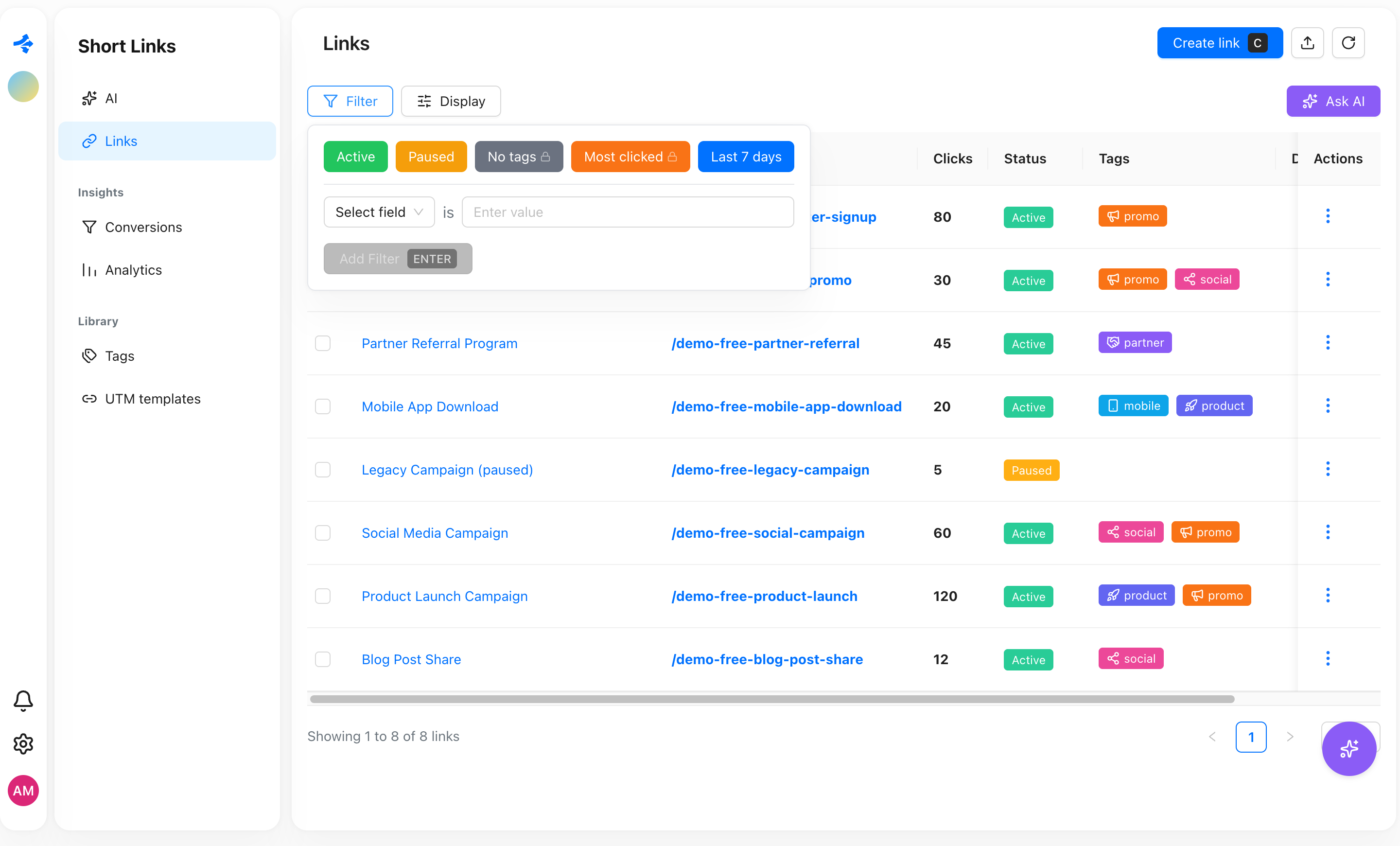
Basic and RQL modes
The filter bar has a Basic / RQL switch. In Basic you add chips (field, operator, value). In RQL you type a query in a single line with syntax highlighting.
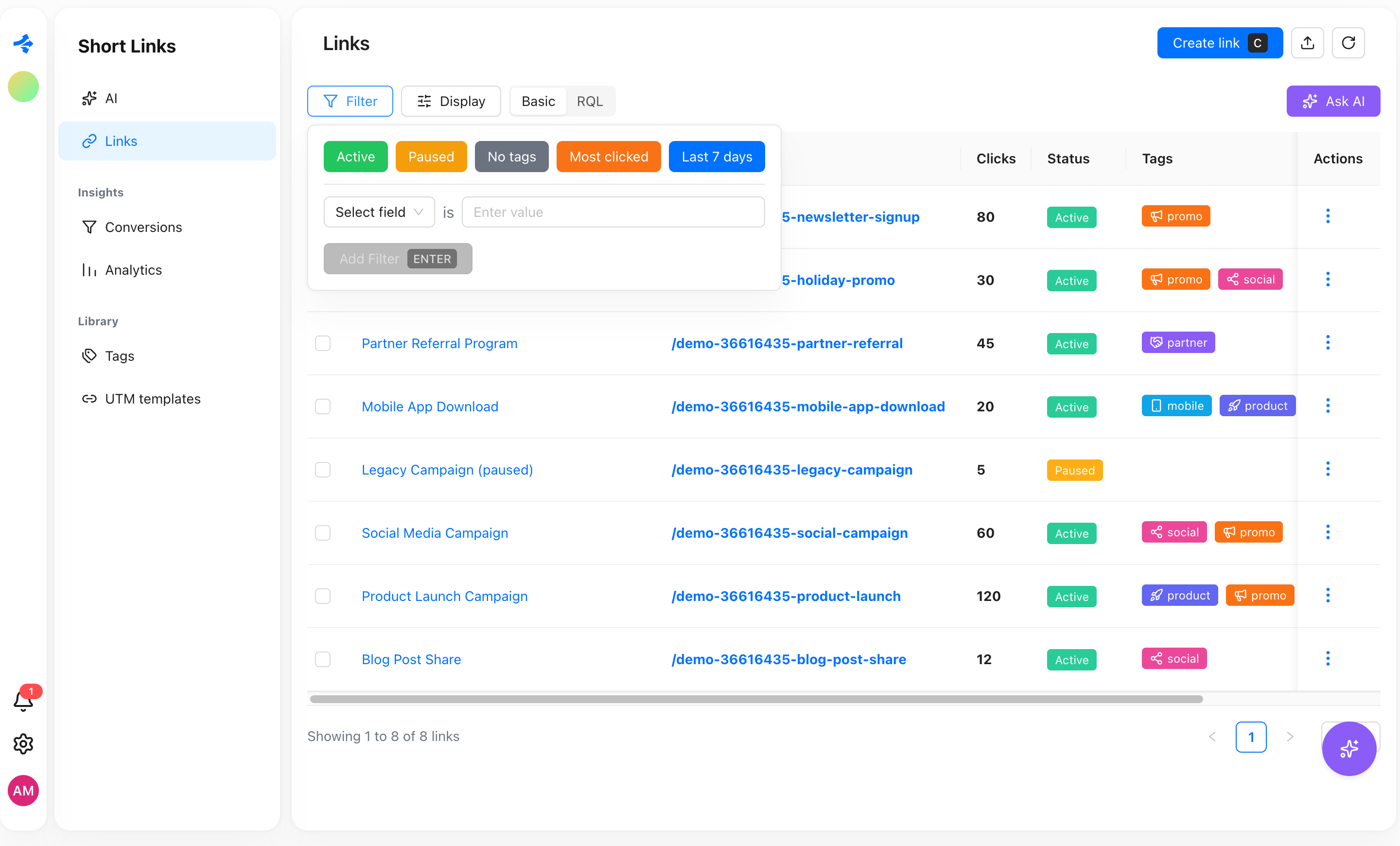
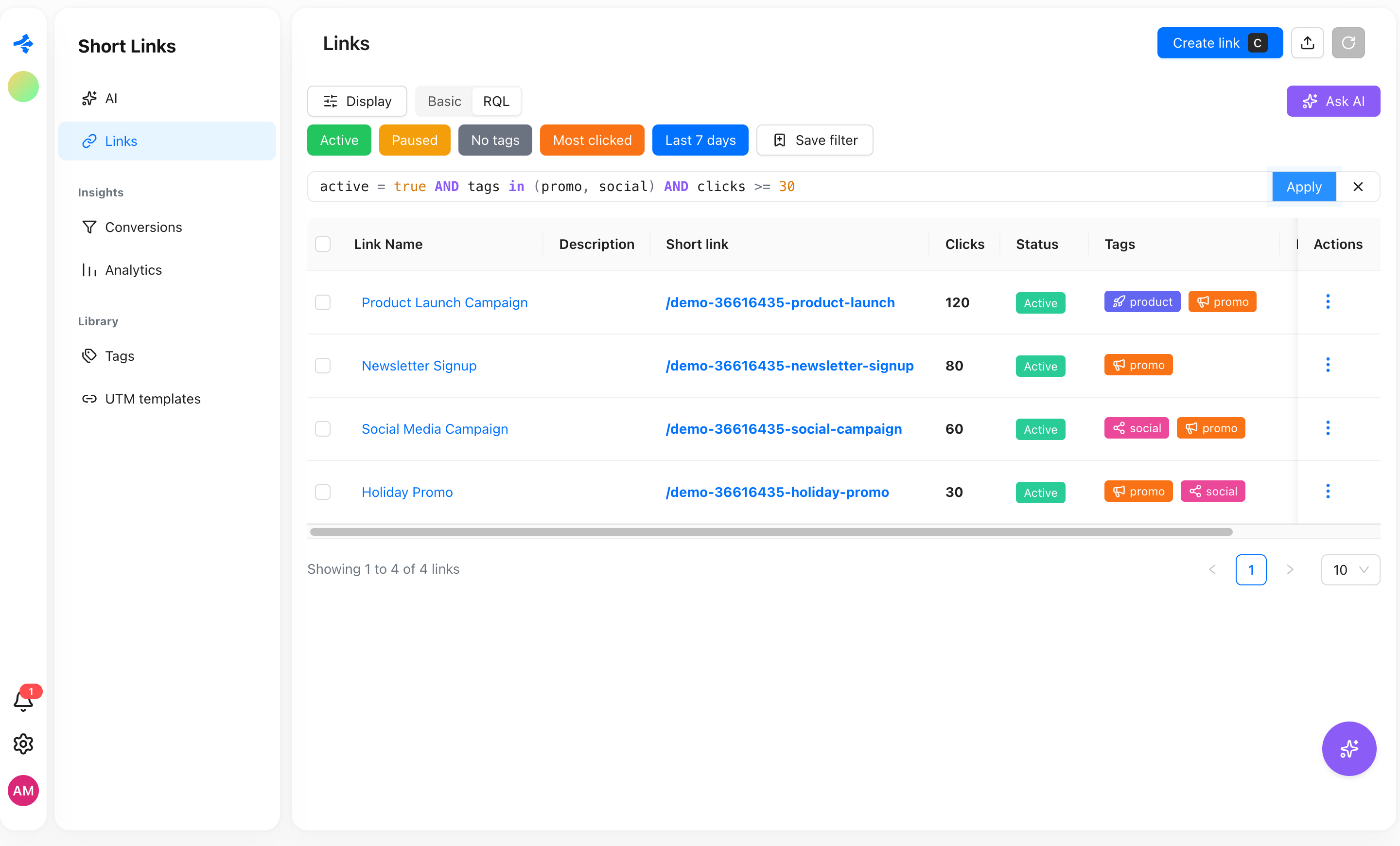
- The two modes show the same filter. Switch to RQL and your chips appear as a query; switch back and a query that chips can show becomes chips again.
- A query that chips cannot show (it has
OR,NOT, brackets,is empty, relative dates and so on) stays as RQL text. In Basic mode it appears as one Advanced filter chip. - Press Enter (or Apply) to apply the query. If you switch to Basic while the text in the editor is valid but not applied yet, it is applied. If it is invalid, it is dropped and your current filters stay as they were, so switching is never blocked.
- The mode is remembered in your browser separately for each page.
Query syntax
A query has two optional parts: a condition and a sort order.
<conditions> ORDER BY <field> [asc|desc], <field> [asc|desc]
Keywords (AND, OR, NOT, IN, IS EMPTY, ORDER BY, asc, desc) and field names are not case-sensitive. ACTIVE = TRUE and active = true mean the same.
Conditions
A condition is field operator value.
| Operator | Meaning |
|---|---|
= | equals |
!= | does not equal |
~ | contains (text) |
!~ | does not contain (text) |
> >= < <= | greater, greater or equal, less, less or equal |
in (a, b, c) | equals any of the listed values |
not in (a, b, c) | equals none of the listed values |
is empty | the field has no value |
is not empty | the field has a value |
Which operators a field accepts depends on its type:
| Field type | Operators |
|---|---|
| text | = != ~ !~ in not in is empty is not empty |
| number | = != > >= < <= in not in |
| yes/no (boolean) | = !=, with true or false |
| select (tags, country, device and so on) | = != in not in is empty is not empty |
| date | = > >= < <= is empty is not empty |
For a select field you can pick the value from the autocomplete list: tag names, your domains, device types, event names and so on.
AND, OR, NOT and brackets
active = true AND clicks > 10
tags in (promo, spring) OR tags is empty
NOT (domain = go.example.com)
(tags = promo OR tags = spring) AND active = true
AND binds tighter than OR, so use brackets when you mix them. NOT negates the condition or the bracket that follows it.
ORDER BY
ORDER BY goes last and takes up to 3 fields, each asc (default) or desc.
clicks > 0 ORDER BY clicks desc
active = true ORDER BY createdAt desc, clicks desc
When you apply a query with ORDER BY, the table is sorted by the first field. Only fields that can be sorted are allowed (see Fields of every page). A query may also consist of ORDER BY alone.
Dates
A date can be written in four ways:
| Form | Example | Meaning |
|---|---|---|
| Calendar day | 2026-10-01 | the whole day in your time zone. createdAt = 2026-10-01 matches that day. |
| Relative | -7d, -1M, +2w | a moment shifted from now. Units: h hours, d days, w weeks, M months, y years. The sign is required. |
| Function | startOfMonth(), endOfWeek() | the start or end of a period: startOfDay, endOfDay, startOfWeek, endOfWeek, startOfMonth, endOfMonth, startOfYear, endOfYear; and now(). |
| Shifted function | startOfMonth(-1) | the same period moved by a whole number of periods. startOfMonth(-1) is the start of last month. |
Weeks start on Monday. Day and period boundaries use the time zone of your profile.
"Last month" is written like this:
createdAt >= startOfMonth(-1) AND createdAt <= endOfMonth(-1)
Quoting and special characters
A value that is a single plain word can be written without quotes (tags = promo). Put a value in double or single quotes when it contains spaces or special characters: name ~ "black friday". Inside quotes, \" is a quote and \n is a line break. Numbers and true / false are written as they are.
Autocomplete and error messages
The editor highlights the query as you type: keywords, operators, strings, numbers, functions and brackets each get their own color.
Autocomplete suggests what can come next at the cursor, up to 12 items:
- at the start of a condition: the fields of the page (with a short description when there is one);
- after a field: the operators that field accepts;
- after an operator: values.
true/falsefor yes/no fields, date shortcuts (-1d,-7d,-30d,-1M,-1y,startOfDay(),startOfWeek(),startOfMonth(),startOfMonth(-1),now()) for dates, and the real options for select fields (your tags, domains, device types and so on); - after a complete condition:
AND,OR,ORDER BY; - after
ORDER BY: the sortable fields, thenasc/desc.
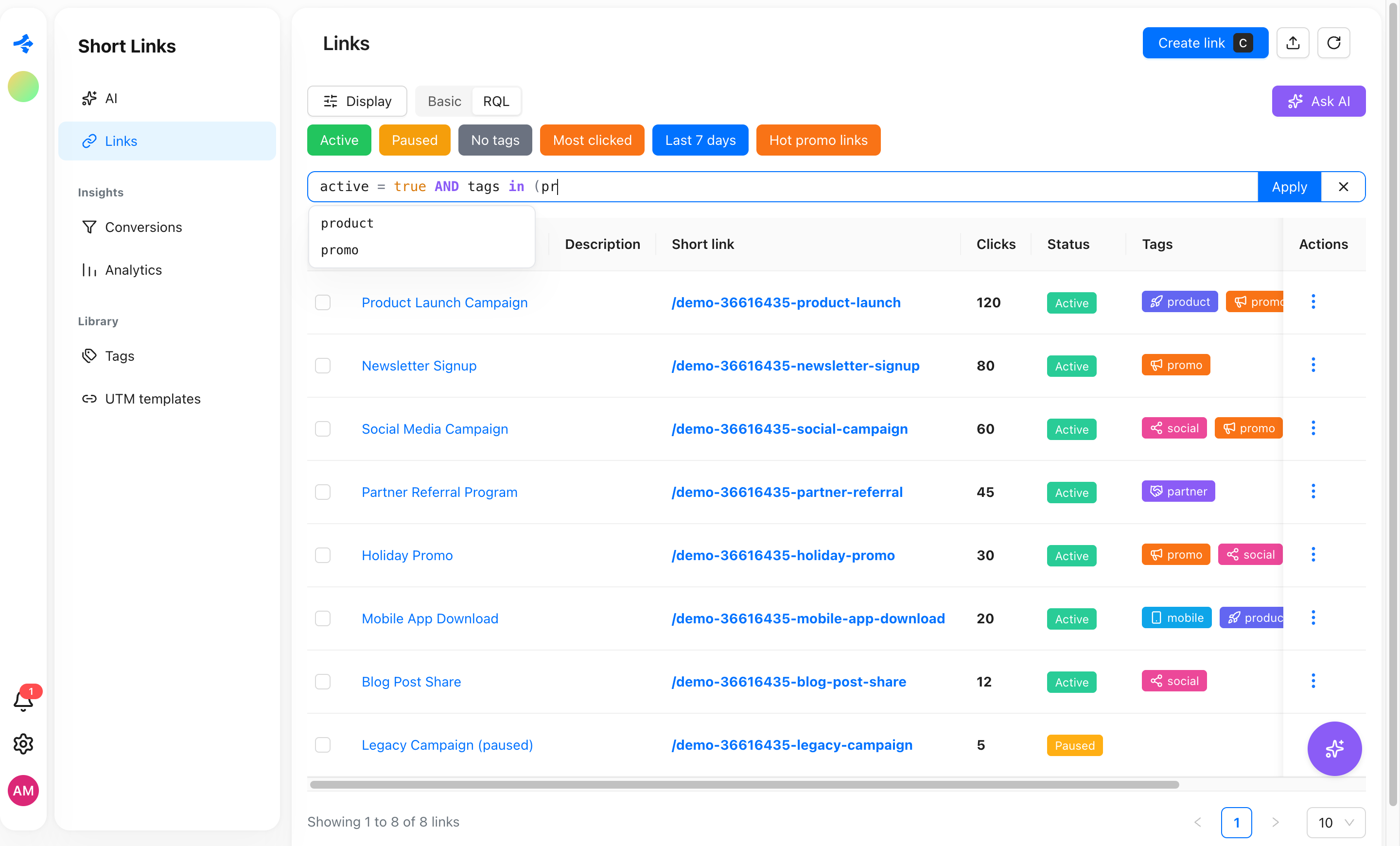
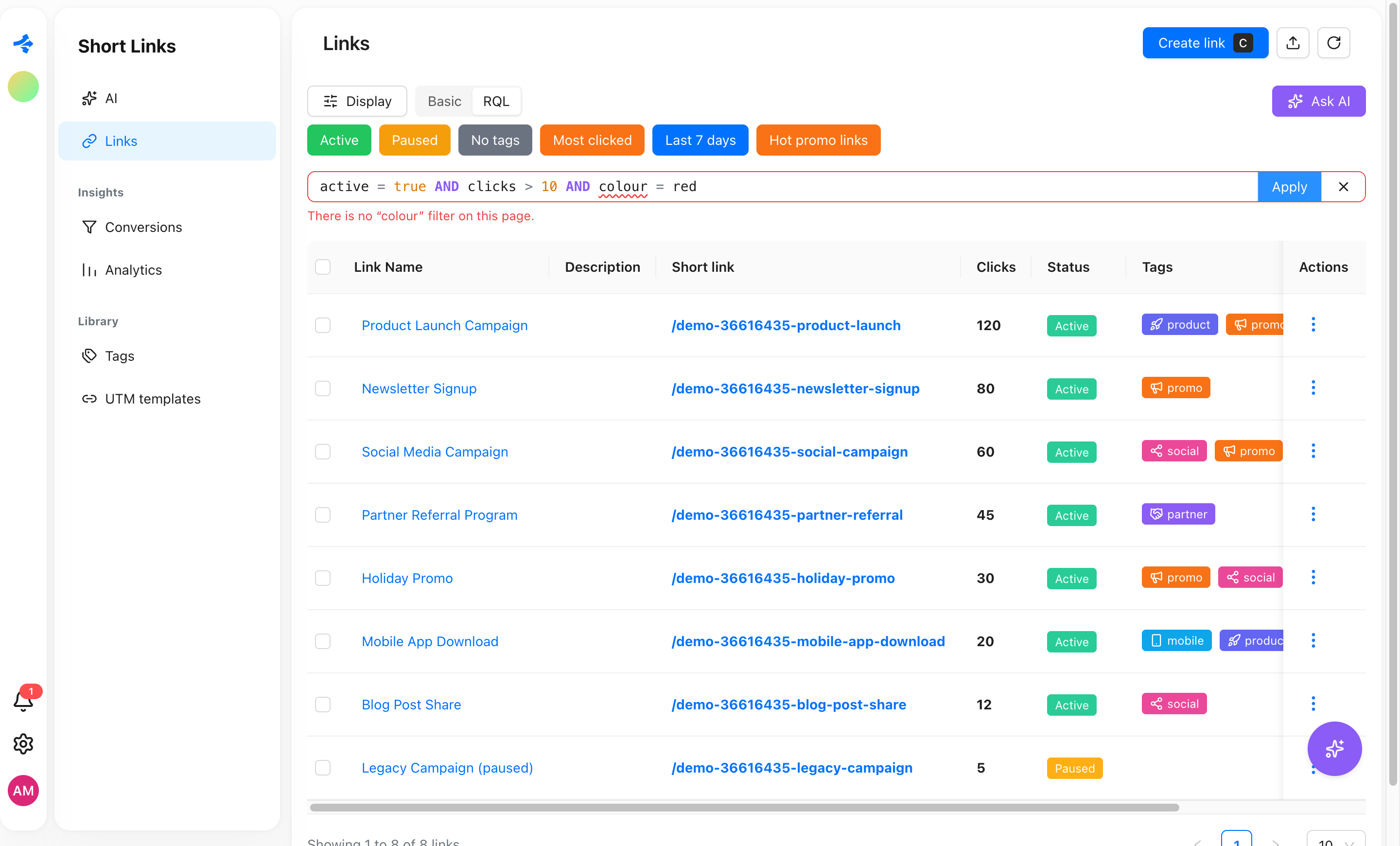
Errors are shown under the editor in plain words, and the exact part of the query that is wrong is underlined. For example:
| You typed | The editor says |
|---|---|
clcks > 10 | There is no "clcks" filter on this page. |
name > 5 | ">" can't be used with "name". |
name = "open | A quote is not closed. |
clicks > | The filter ends too early, something is missing at the end. |
tags in (a, b | The filter ends too early, something is missing at the end. |
ORDER BY tags | You can't sort by "tags". |
createdAt > startOfFoo() | Unknown function "startOfFoo". |
Nothing is applied until the query is valid, so a typo never empties your table.
Fields of every page
RQL works on these pages. Each page has its own list of fields, and a field that is not on the list cannot be used or sorted by.
Links
| Field | Type | Notes |
|---|---|---|
name | text | sortable |
description | text | sortable |
shortLink | text | alias slug; sortable |
clicks | number | sortable |
active | yes/no | alias status; true is active, false is paused; sortable |
tags | select | tag names; a tag that does not exist matches nothing |
domain | select | the domains your links use |
createdAt | date | alias created; sortable |
Analytics (all links)
Filters the clicks of the workspace.
| Field | Type | Notes |
|---|---|---|
country | select | two-letter code (UA, US) or country name (Ukraine) |
city | select | city name in English |
device | select | desktop, mobile, tablet, console, smarttv, wearable, embedded |
os | select | Windows, macOS, Linux, Android, iOS |
browser | select | Chrome, Firefox, Safari, Edge, Opera, Brave |
locale | select | browser language, for example en, uk, de |
tags | select | the tags of the link the click came from |
domain | select | the domain of the link the click came from |
tags and domain belong to the link, the rest to the click. You can mix them freely, including with OR and NOT. If a tag or domain filter matches too many links, Revolink asks you to narrow it down.
The analytics page has no sortable fields, so ORDER BY is not available there.
Link analytics (one link)
The same click fields as above (country, city, device, os, browser, locale), without tags and domain, because the link is already fixed by the page.
Conversions
| Field | Type | Notes |
|---|---|---|
eventName | select | alias event; the event names your workspace has recorded |
device | select | same values as in analytics |
currency | text | three-letter code such as USD |
value | number | |
link | text | the short link (slug) the conversion came from |
Imports
The table of imports in the workspace settings.
| Field | Type | Notes |
|---|---|---|
sourceName | text | alias source |
initiator | select | alias startedBy; the person who started the import |
status | select | draft, running, waiting_plan, waiting_domain, done, failed, cancelled, expired |
resultCount | number | alias result |
createdAt | date | alias created |
Quick filters
Quick filters are the colored buttons above the table. One click applies the filter, another click clears it. The button of the filter that is currently applied is highlighted with a ring in its own color.
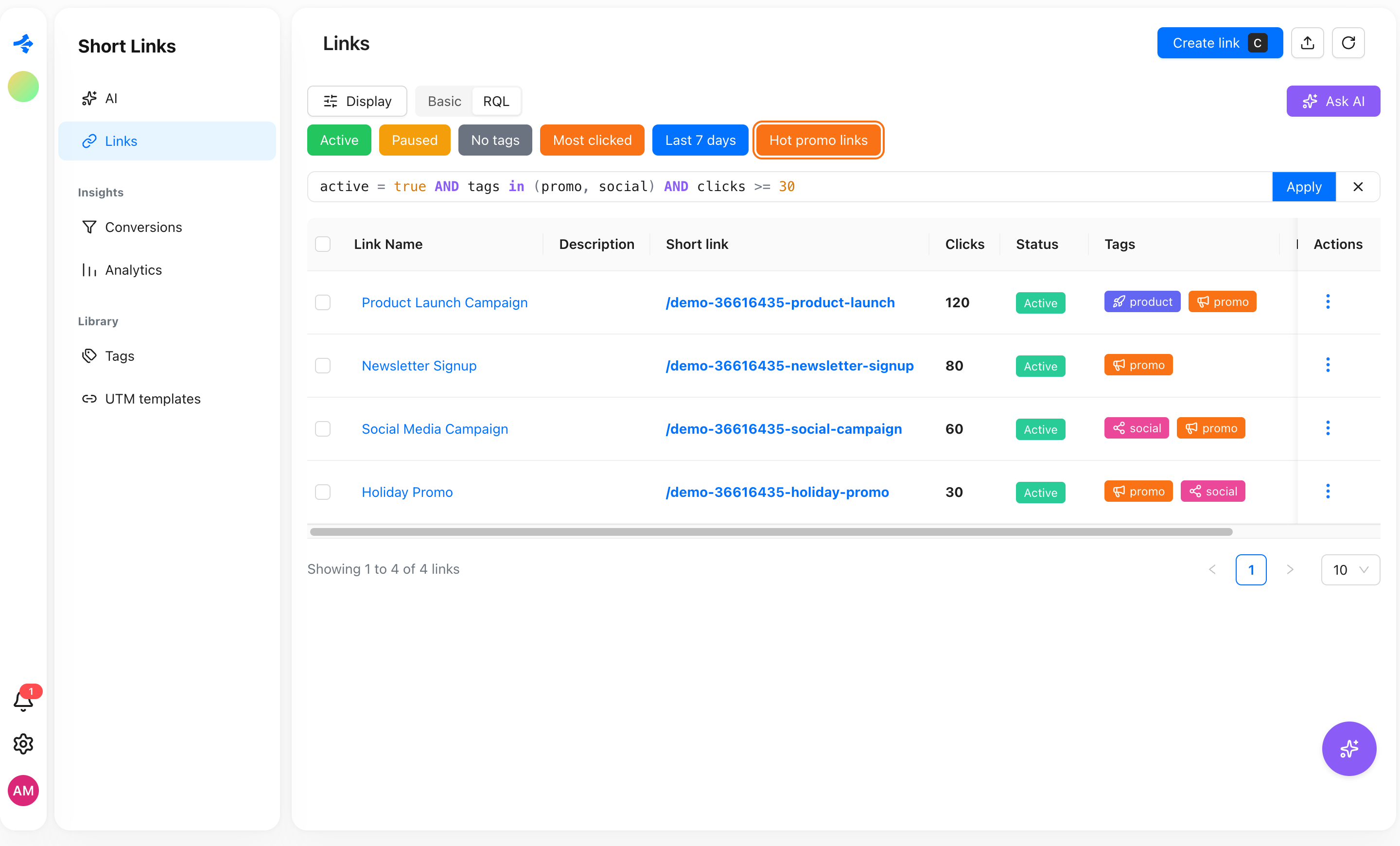
There are three kinds, all in one row:
- Ready-made filters that come with the page.
- Links: Active, Paused, No tags, Most clicked, Last 7 days.
- Analytics and link analytics: Mobile, Desktop, iOS, Android.
- Conversions: With value.
- Imports: Running, Done, Failed.
- Mine: filters you saved for yourself.
- Team: filters saved for everyone in the workspace.
On plans without RQL, the ready-made filters that need it (No tags and Most clicked on the links page) and all saved filters show a lock.
You can switch each of the three kinds on or off in Config → Filters: Ready-made filters, My saved filters and Workspace filters.
Saving a filter
When the query in the filter bar is worth keeping and is not already a quick filter, a Save filter button appears. It opens a window with:
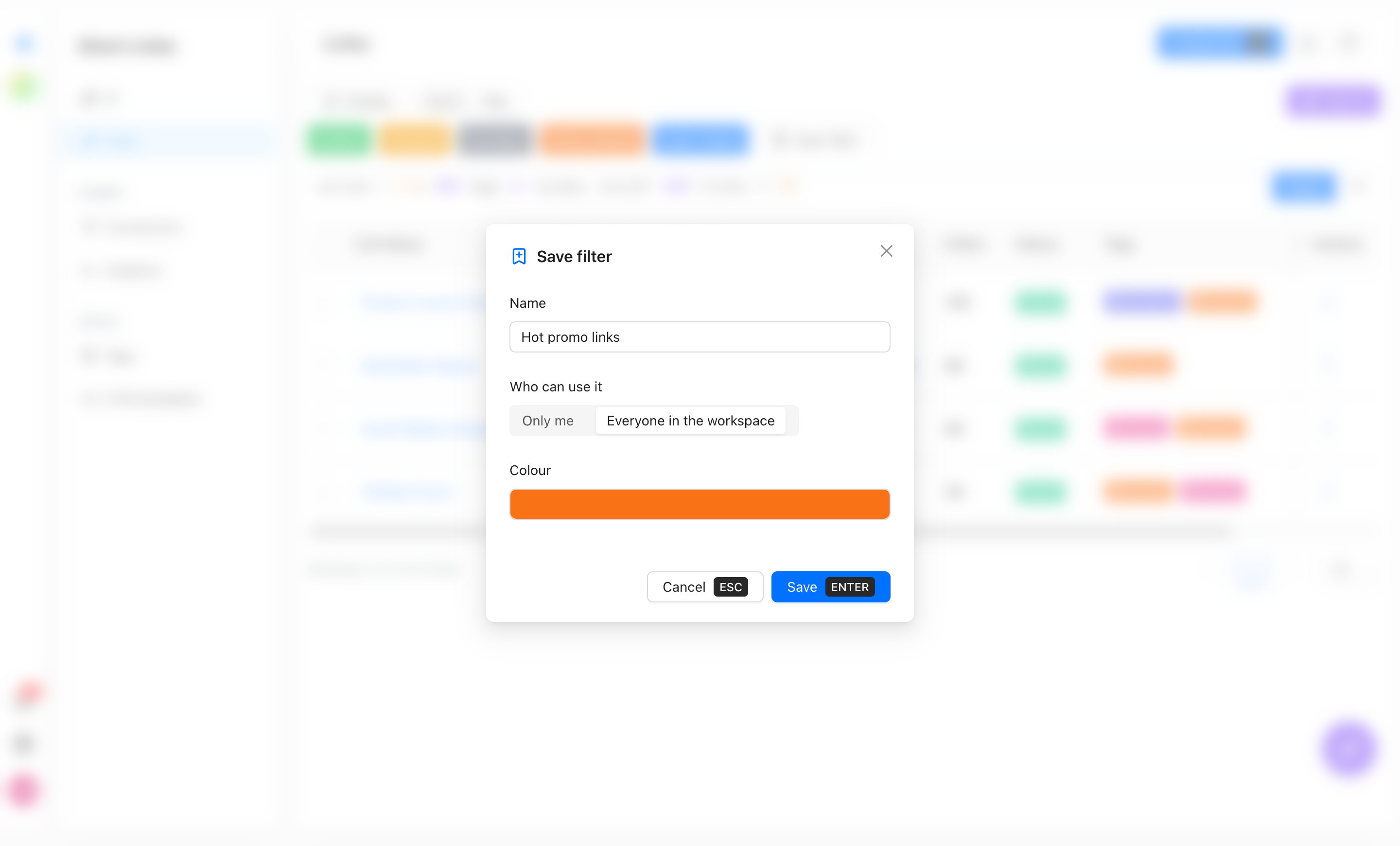
| Setting | Notes |
|---|---|
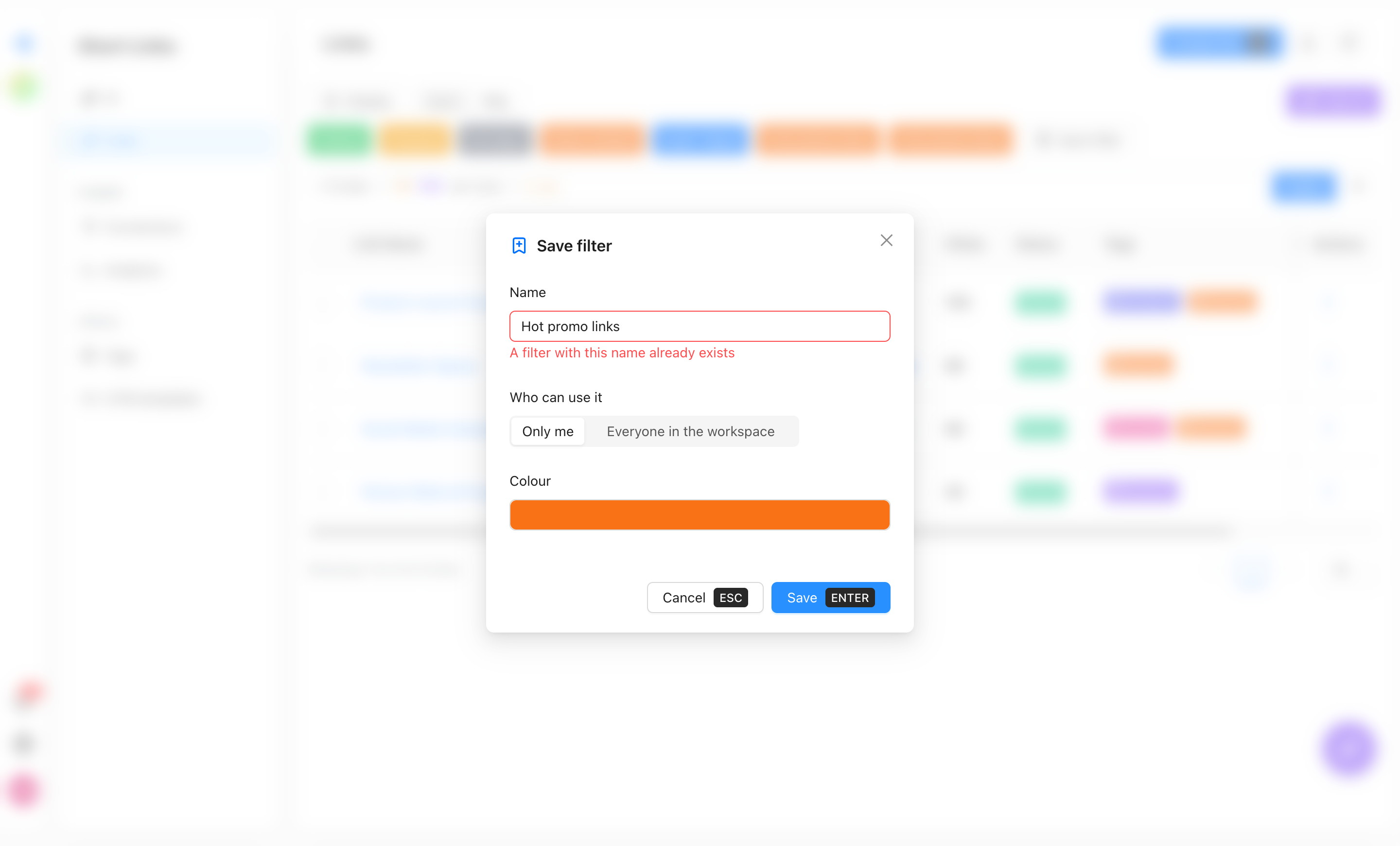
| Name | up to 60 characters. Must be unique among your filters (or among the workspace's filters) on that page, ignoring upper and lower case. A personal filter and a shared one may have the same name. If the name is taken, the window stays open and shows "A filter with this name already exists" under the field. |
| Who can use it | Only me or Everyone in the workspace. The choice is shown only if you have the right to manage workspace filters. The workspace owner always has it; other members get it through their role. |
| Colour | the color of the quick-filter button. Pick it in the color picker; it starts as blue. |
A saved filter belongs to the page it was saved from and appears on that page only. The query is stored in a normalized form, so status = true is kept as active = true, and keywords and quotes are tidied. If the query has a mistake, it is not saved and the mistake is shown.
Saving needs a plan with RQL filters. See Which plans include it.
The Filters page
Saved filters are managed in two places:
- Config → Filters: your own filters.
- Workspace settings → Filters: filters shared with the workspace.
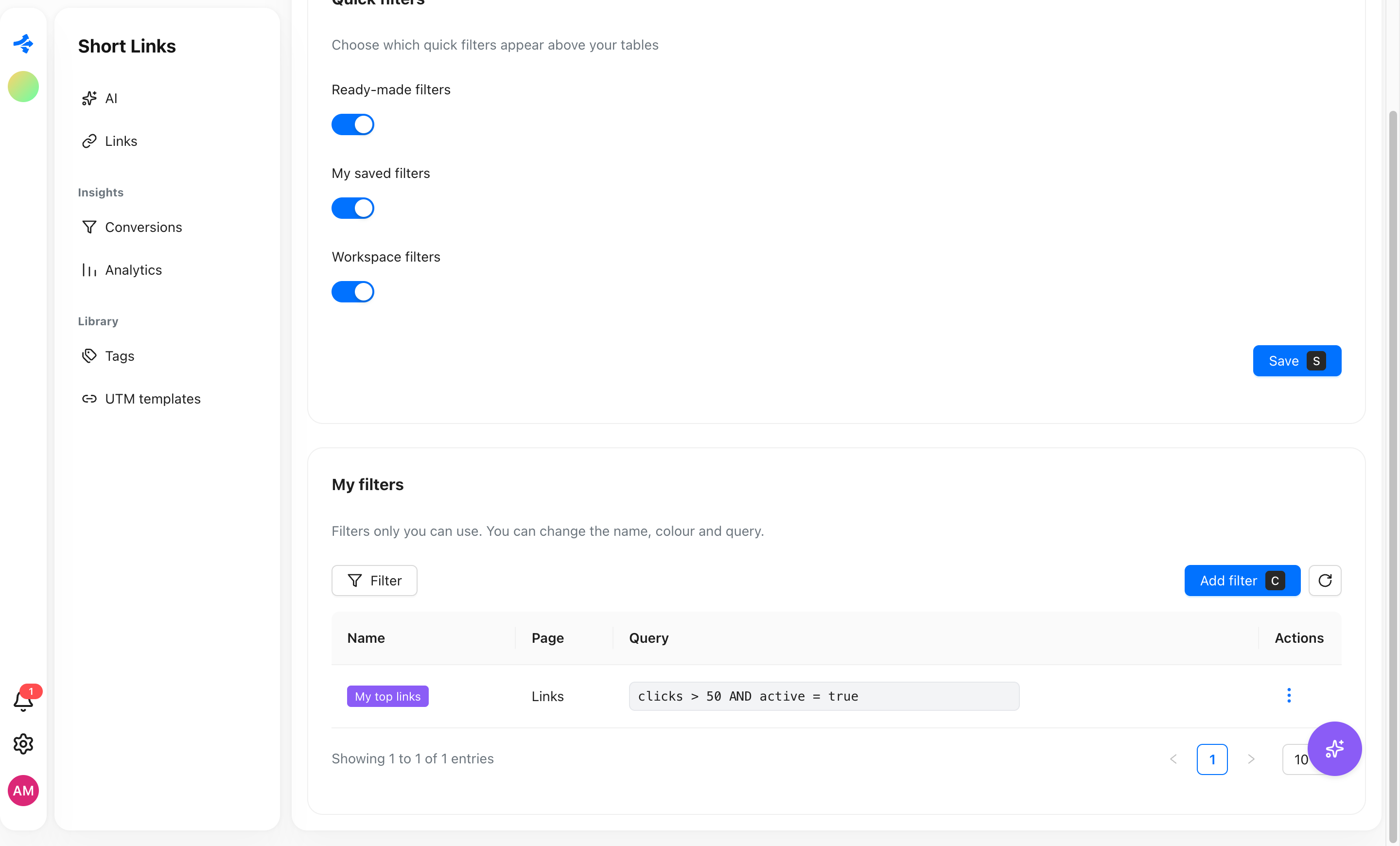
Each is a table with the name, the page and the query. From there you can:
- Add filter: pick the page, write the query in the editor (with the same highlighting, autocomplete and error messages), then set the name and color. The table decides who can use it: filters added in Config → Filters are yours, filters added in Workspace settings → Filters are shared.
- Edit: change the name, color or query. A click on the query puts the cursor straight into it.
- Delete: the filter disappears for everyone who used it.
Your own filters can be changed by you only. Shared ones can be changed by whoever has the right to manage workspace filters. Deleting is allowed on every plan, so a workspace that moved to a lower plan can still tidy up.
A user can keep up to 50 personal filters and a workspace up to 100 shared filters.
Ask AI
Click Ask AI in the filter bar and describe what you are looking for in your own words. Press Enter or Go.
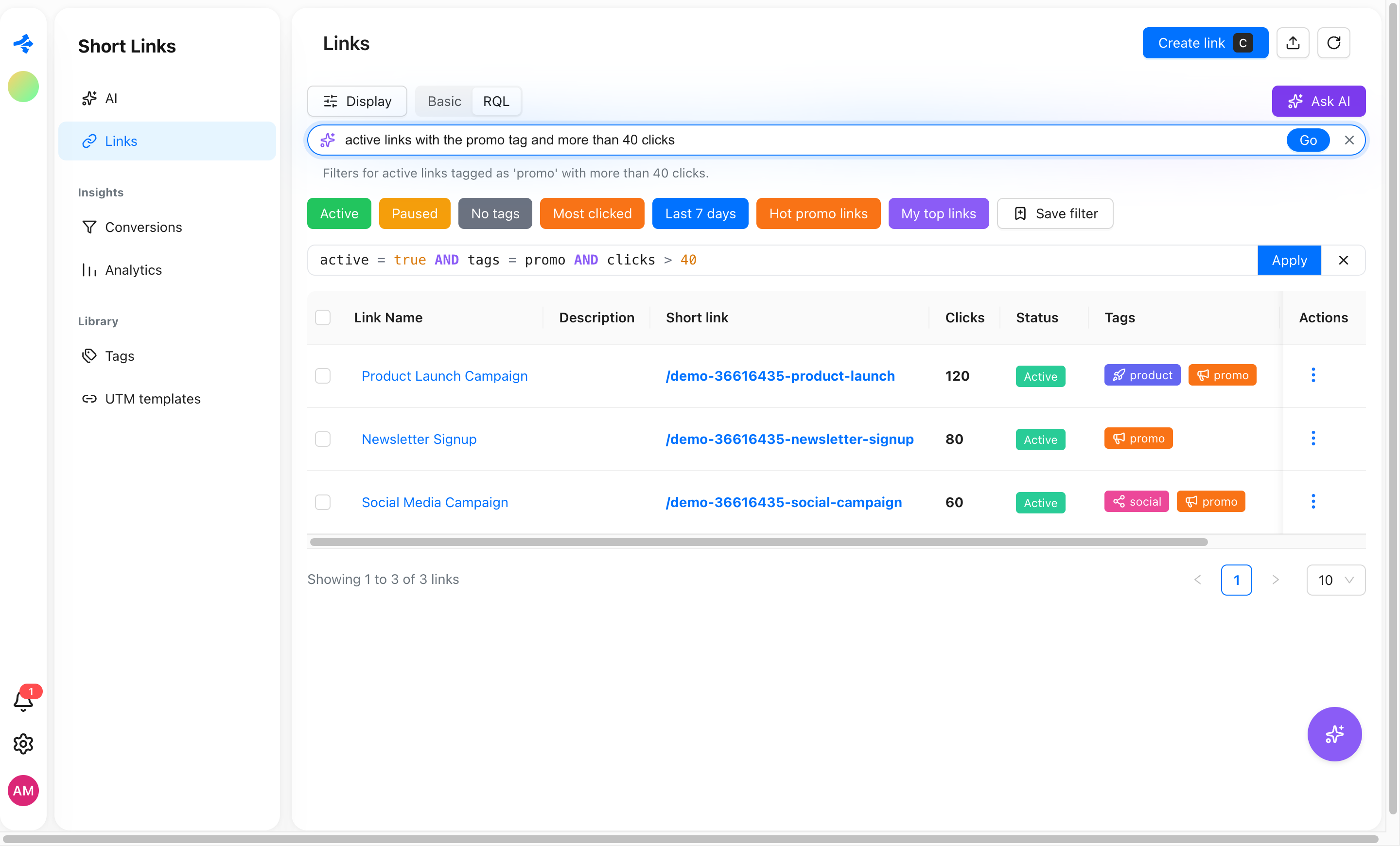
- Examples: "active links with the promo tag from last week" on the links page, "clicks from Germany on mobile devices" in analytics, "purchases over 100 from mobile devices" in conversions, "failed imports from this month" in imports.
- You can write in any language. The AI answers with one short sentence in your language saying what the filter does, and the query is applied to the page like a query you typed. You can open the RQL editor and adjust it.
- The AI only writes the query. It is checked by the same parser and the same list of fields as a query you type. A field or option it invented is rejected, it gets one chance to correct itself, and nothing runs on its own.
- It knows your workspace's tag names and domains, so it can match "the promo tag" to a real tag.
- A request is up to 500 characters.
- If the request is unclear or has nothing to do with the page's fields, you get a note instead of a filter.
- Ask AI uses the daily AI allowance of the workspace owner's plan. When it is used up, you see "Today's AI limit is reached. Try again tomorrow."
On plans without RQL, Ask AI only returns queries that Basic chips can show. See Which plans include it.
Limits
| Limit | Value |
|---|---|
| Query length | 2,000 characters |
| Conditions in one query | 50 |
| Nested brackets | 10 levels |
Values in one in (...) list | 100 |
| Length of one value | 200 characters |
Fields in ORDER BY | 3 |
| Saved filter name | 60 characters |
| Personal saved filters per workspace | 50 |
| Shared saved filters per workspace | 100 |
| Ask AI request | 500 characters |
Examples
Every query below is checked against the real parser of the page it is written for.
Links
active = true AND clicks > 10
name ~ "black friday" ORDER BY clicks desc
(tags in (promo, spring) OR tags is empty) AND active = true
createdAt >= startOfMonth(-1) AND createdAt <= endOfMonth(-1)
createdAt >= -7d AND clicks >= 100 ORDER BY createdAt desc, clicks desc
NOT (domain = go.example.com) AND slug ~ launch
tags not in (archive) AND status = true
createdAt >= 2026-10-01 AND createdAt <= 2026-10-31
Analytics
country in (UA, DE) AND device = mobile
os = iOS OR os = Android
browser != Safari AND tags = promo
Link analytics
country = Germany AND device = mobile
Conversions
value > 100 AND device = mobile
eventName = purchase AND currency = USD AND value >= 50
event in (purchase, lead) AND link ~ spring
Imports
status = failed AND createdAt >= startOfMonth()
source ~ bitly AND result > 100