

On this page
Links & Rules
Revolink links are smarter than regular short links. Instead of always sending everyone to the same page, your link can route different visitors to different destinations — based on where they are, what device they use, or what time it is.
This guide walks through everything: creating a link, setting up routing rules, and understanding how it all works.
Creating a link
Click Create link from the Links page. A modal opens with the same tabs as the full edit page — the experience is identical.
Every link has four tabs: Main info, Rules, UTM configurator, and Appearance. After saving, an Analytics tab appears too.
Main info tab
This is where you set the basics.
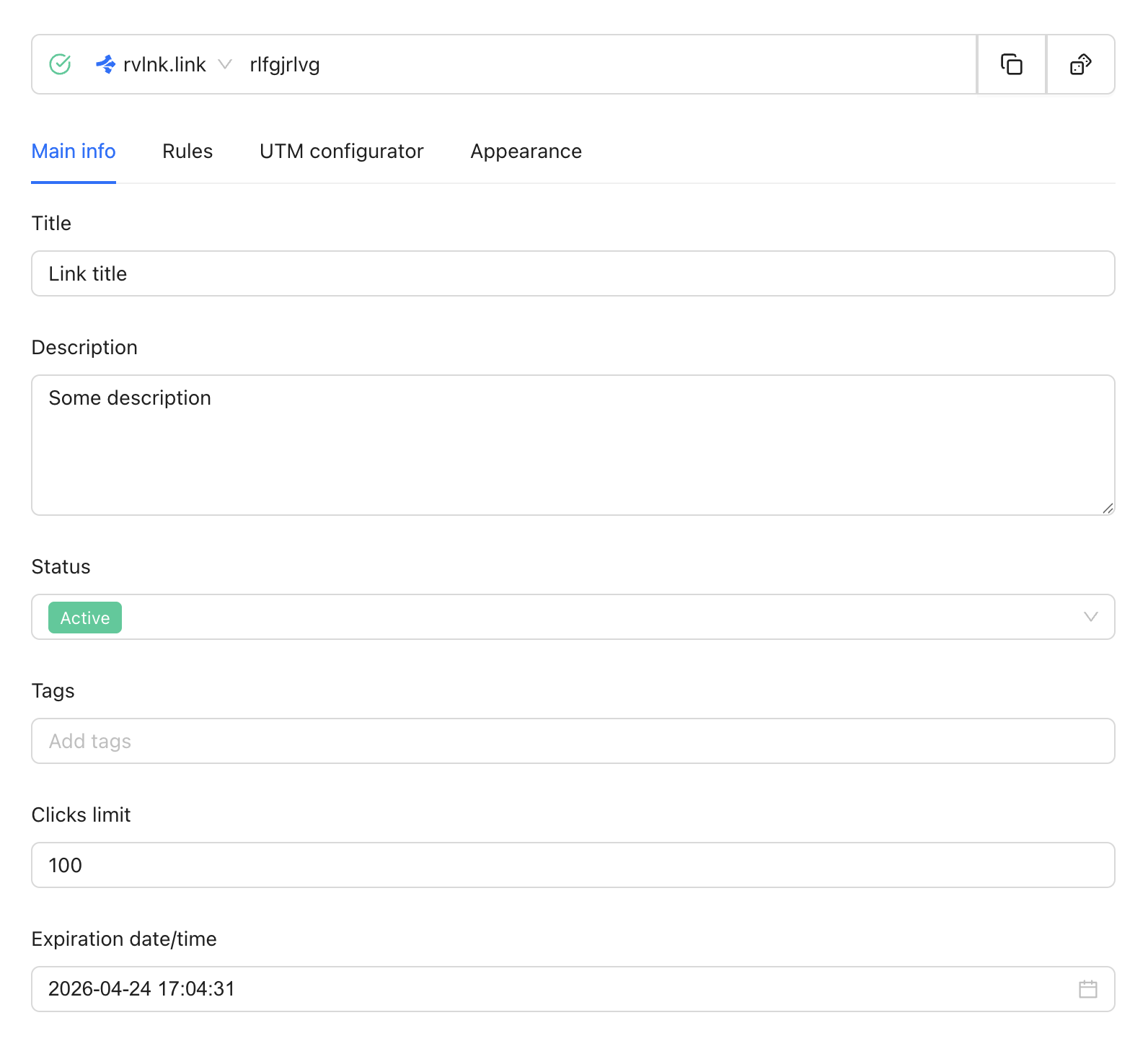
| Field | What it does |
|---|---|
| Title | The name you give the link — for your own reference, not shown to visitors |
| Description | Internal notes. Visitors never see this |
| Status | Active = link works. Paused = visitors get no redirect |
| Tags | Organize links by tags — useful when you have many |
| Clicks limit | The link auto-pauses after this many clicks. Leave empty for no limit |
| Expiration date/time | The link auto-pauses after this date. Leave empty for no expiration |
| GPS tracking | When enabled, visitors are asked to share their precise location before being redirected. Available on Starter, Pro, and Business plans. |
At the top you can see and copy your full short URL — for example rvlnk.link/rlfgjrlvg.
Rules tab
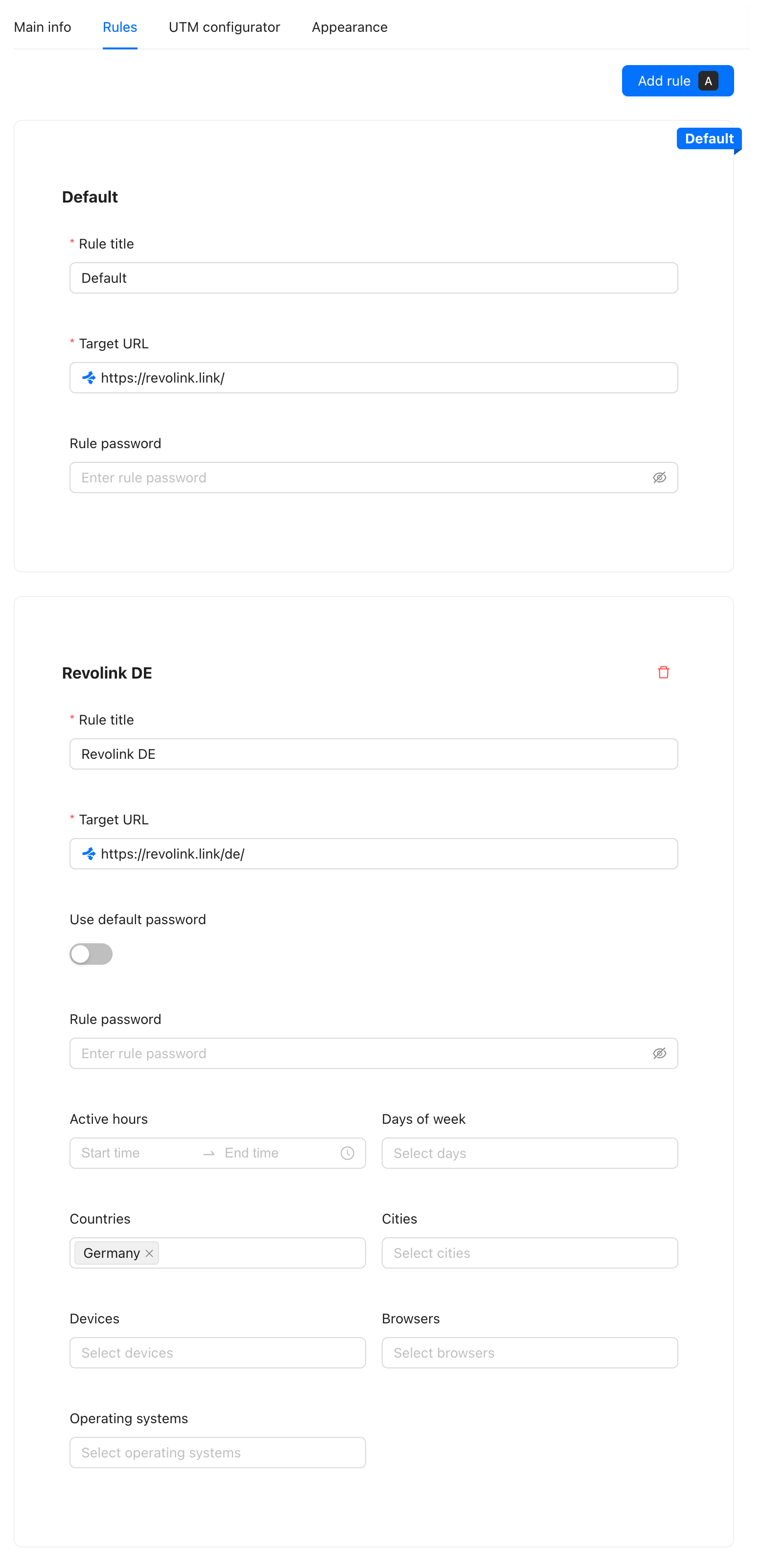
This is the core of Revolink. Rules define where the visitor goes when they click your link.
What is a rule?
A rule is: "if the visitor matches these conditions → send them to this URL."
Every rule has a Target URL — the destination. You can also give it a Rule title to keep things organized when you have many rules.
The Default rule
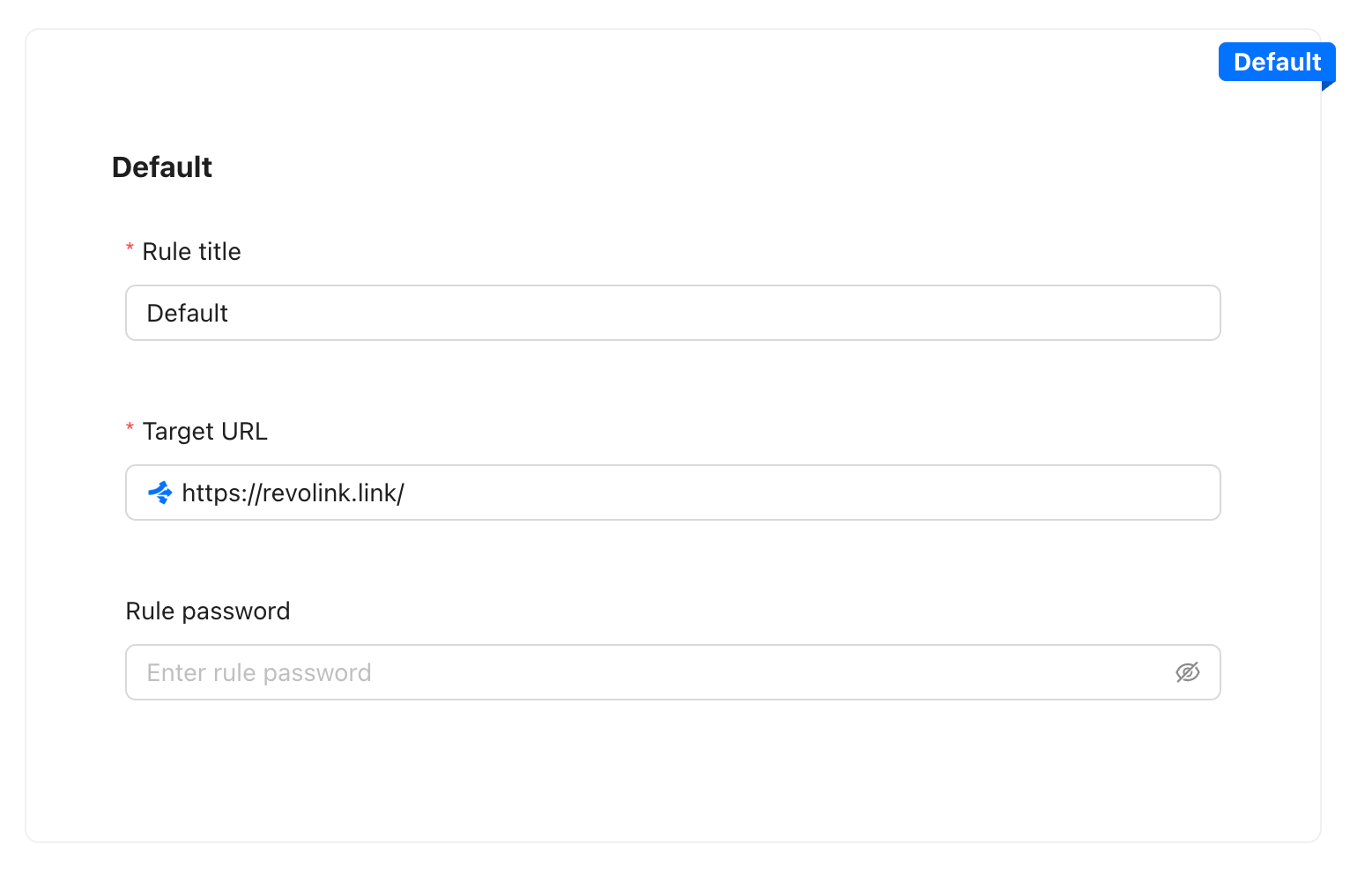
Every link must have exactly one Default rule — marked with a blue badge in the top-right corner of its block.
The Default rule is the fallback. It catches everyone who didn't match any other rule. Think of it as "everyone else goes here."
TIP
The Default rule has no conditions — it always fires. That's by design. You can only set a Target URL and an optional password on it.
Adding a routing rule
Click Add rule (top right of the Rules tab) to add a new rule with conditions.
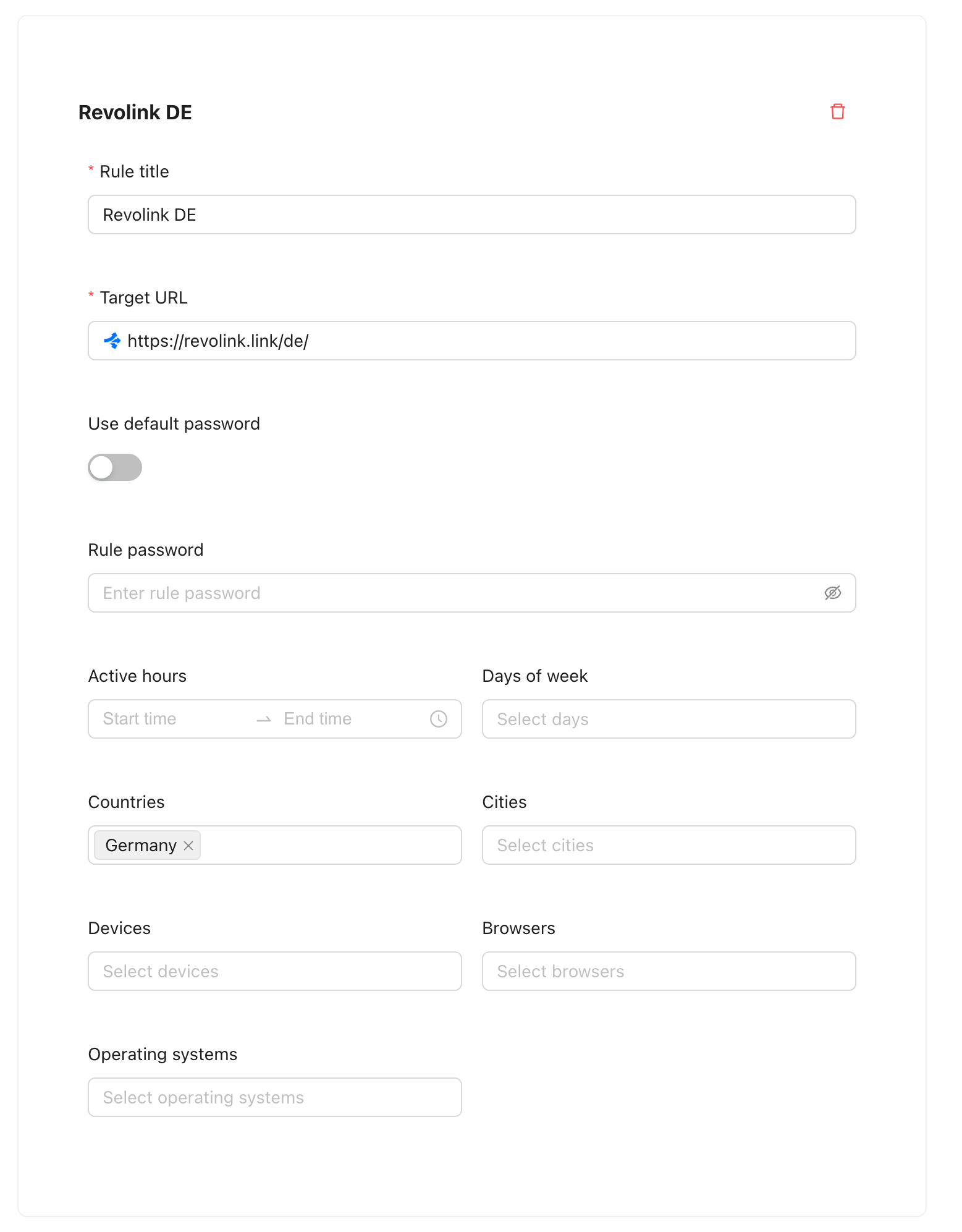
Each routing rule can filter visitors by:
Active hours — only match visitors during a specific time window (based on the visitor's local timezone).
Days of week — only match on selected days.
Countries / Cities — only match visitors from specific countries or cities. To filter by city, you must also select a country.
Devices — match by device type: Mobile, Desktop, Tablet, Smart TV, Console, Wearable.
Browsers — match by browser: Chrome, Firefox, Safari, Edge, Opera, Brave.
Operating systems — match by OS: Windows, macOS, Linux, iOS, Android.
You can combine any of these in one rule — all conditions must match at the same time.
Rule password
Both the Default rule and routing rules can have a Rule password. When set, visitors must enter the password before being redirected.
On a routing rule, you can turn on Use default password to reuse the password set on the Default rule — no need to type it again.
How Revolink picks which rule to use
When someone clicks your link:
- Revolink goes through all routing rules in order, top to bottom
- The first rule where all conditions match → the visitor is sent there. Done.
- If no rule matches → the visitor is sent to the Default rule
Order matters. The rule listed first has priority. Put more specific rules above broader ones.
Example
You have three rules:
Rule 1: Countries = Ukraine, Devices = Mobile → app store link
Rule 2: Countries = Ukraine                  → ukrainian website
Default:                                     → main website
A Ukrainian iPhone user hits Rule 1 — goes to the app store.
A Ukrainian desktop user skips Rule 1 (wrong device), hits Rule 2 — goes to the Ukrainian site.
Anyone else falls through to Default — goes to the main site.
UTM configurator tab
UTM parameters let you track where your traffic comes from in Google Analytics or similar tools. Instead of manually adding ?utm_source=... to every Target URL, you configure it once here and Revolink appends it automatically.
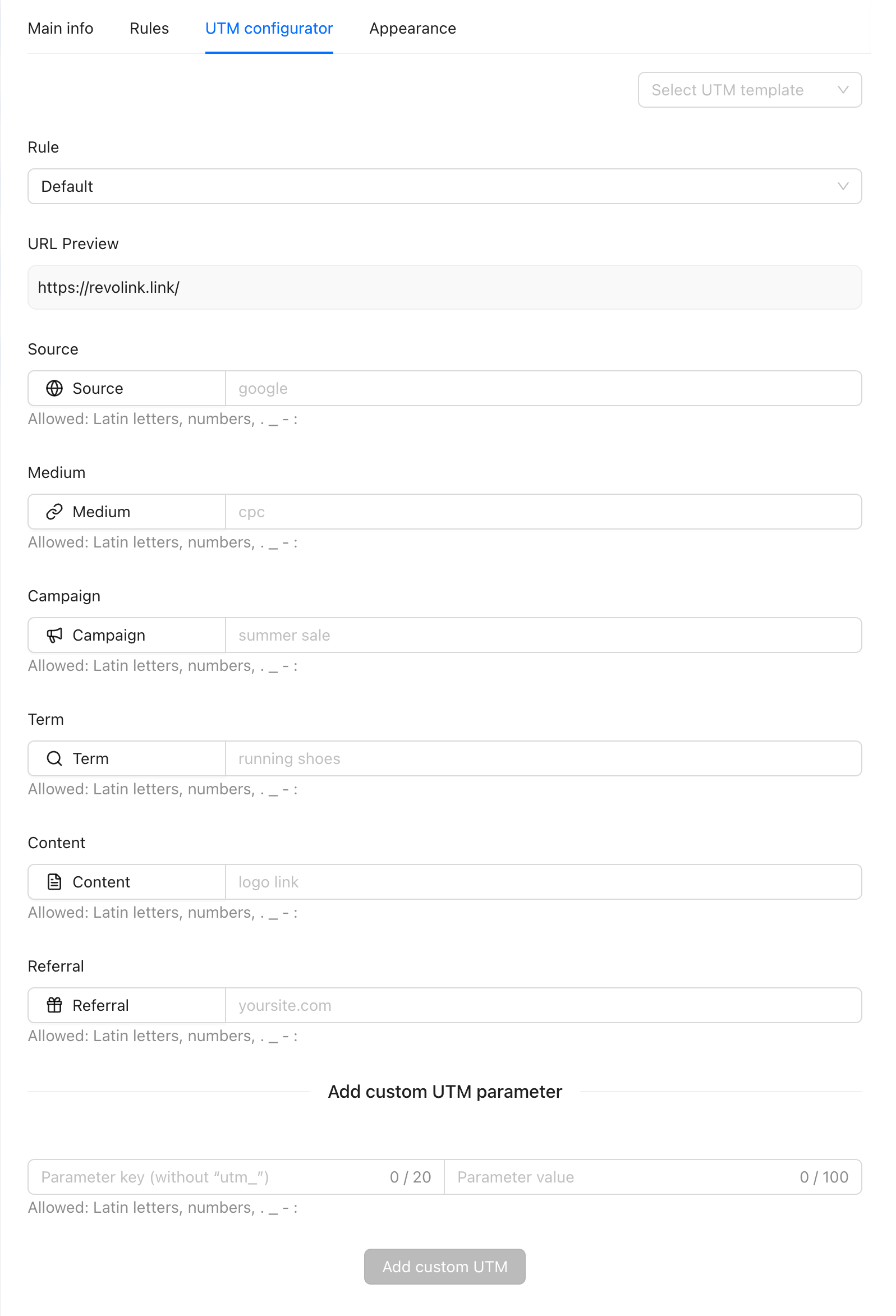
Select which Rule the UTM config applies to — you can set different UTM parameters per rule. The URL Preview shows exactly what the final URL will look like.
Standard fields: Source, Medium, Campaign, Term, Content, Referral.
Need something beyond the standard set? Add any custom key/value pair in Add custom UTM parameter at the bottom.
Appearance tab
Control how your link looks in the workspace and when shared on social media.
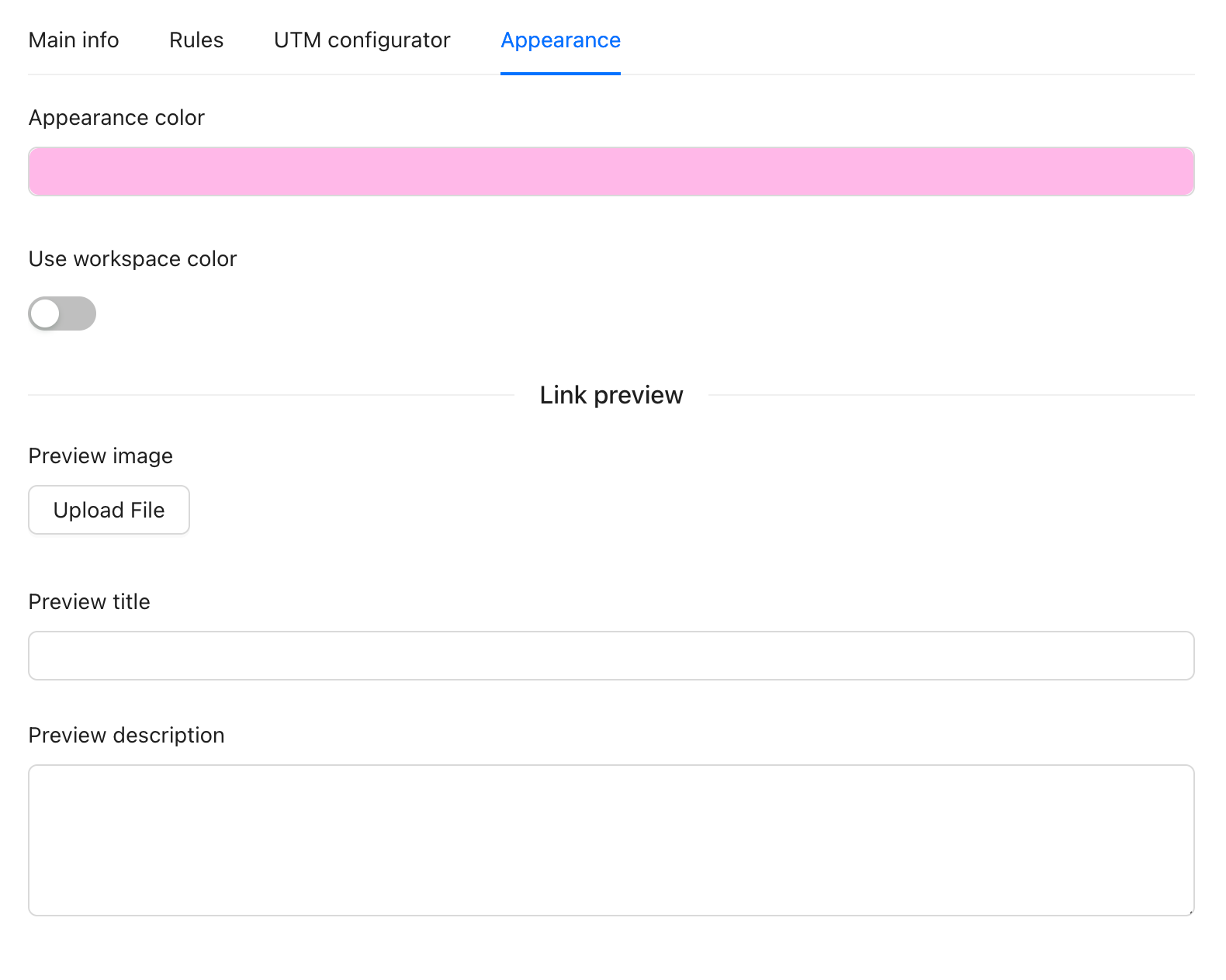
Appearance color — the color stripe shown next to this link in your links list. Purely for visual organization.
Use workspace color — skip picking a color and use the default color set for your workspace.
Link preview — when someone shares your short link on Telegram, Slack, Twitter, or any platform that shows link previews, this controls what they see:
- Preview image — the image shown in the preview card
- Preview title — the title shown in the preview card
- Preview description — the description shown in the preview card
If you leave these empty, the platform will try to pull preview data from the destination page itself.
Analytics tab
See how your link is performing. This tab appears after the link is created.
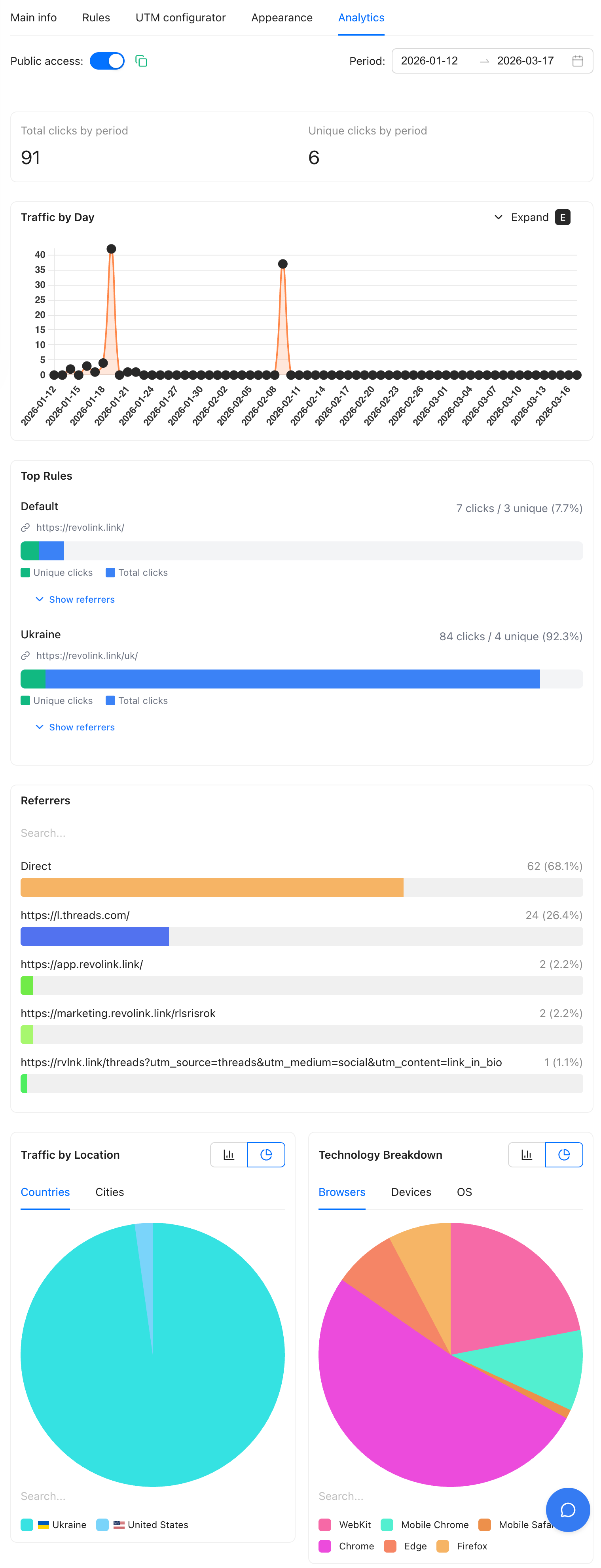
Total clicks — every click on the link in the selected period.
Unique clicks — unique visitors (identified by fingerprint), regardless of how many times they clicked.
Traffic by Day — click chart over time. Hit Expand to see a larger version.
Top Rules — which of your rules received the most traffic. Useful to understand which audience segment is clicking most. Each rule shows click and unique visitor counts with a visual bar.
Referrers — where clicks came from. "Direct" means the link was opened without a referrer (typed directly, from a native app, etc.).
Traffic by Location — breakdown by country or city. Switch between the Countries and Cities tabs.
Technology Breakdown — breakdown by browser, device type, or OS. Switch between the Browsers, Devices, and OS tabs.
Public access — toggle at the top left. When enabled, anyone with the link can view this analytics page without logging in. Useful for sharing stats with clients or stakeholders.
Location maps
The Analytics tab includes a map card with two modes, switched via the icons in the top-right corner of the card.
Clicks Map — shows a dot for every click on the link. No visitor opt-in required. Location is derived from IP geolocation, accurate to the city level. Click any marker to see the timestamp, country, city, and device.
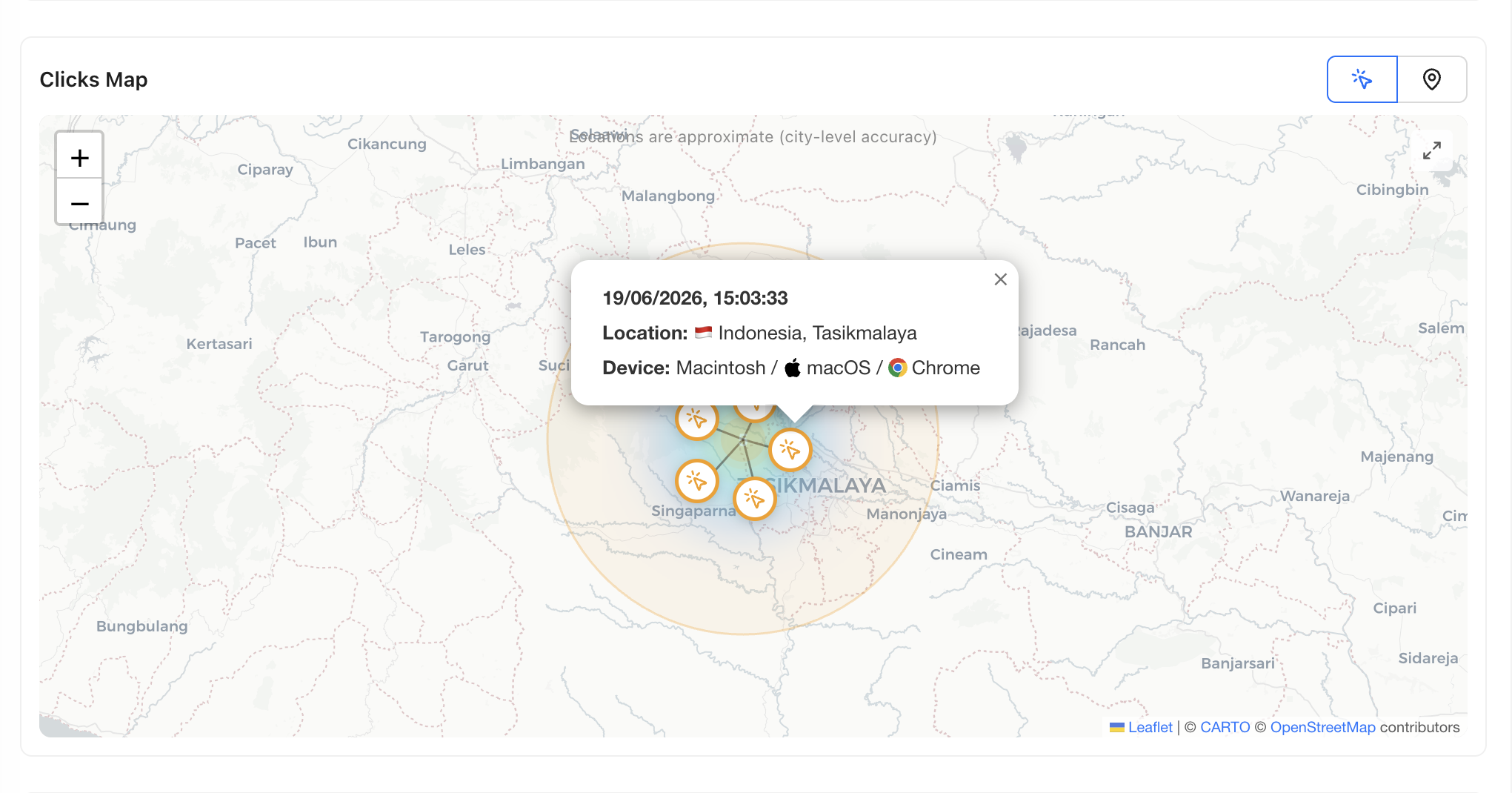
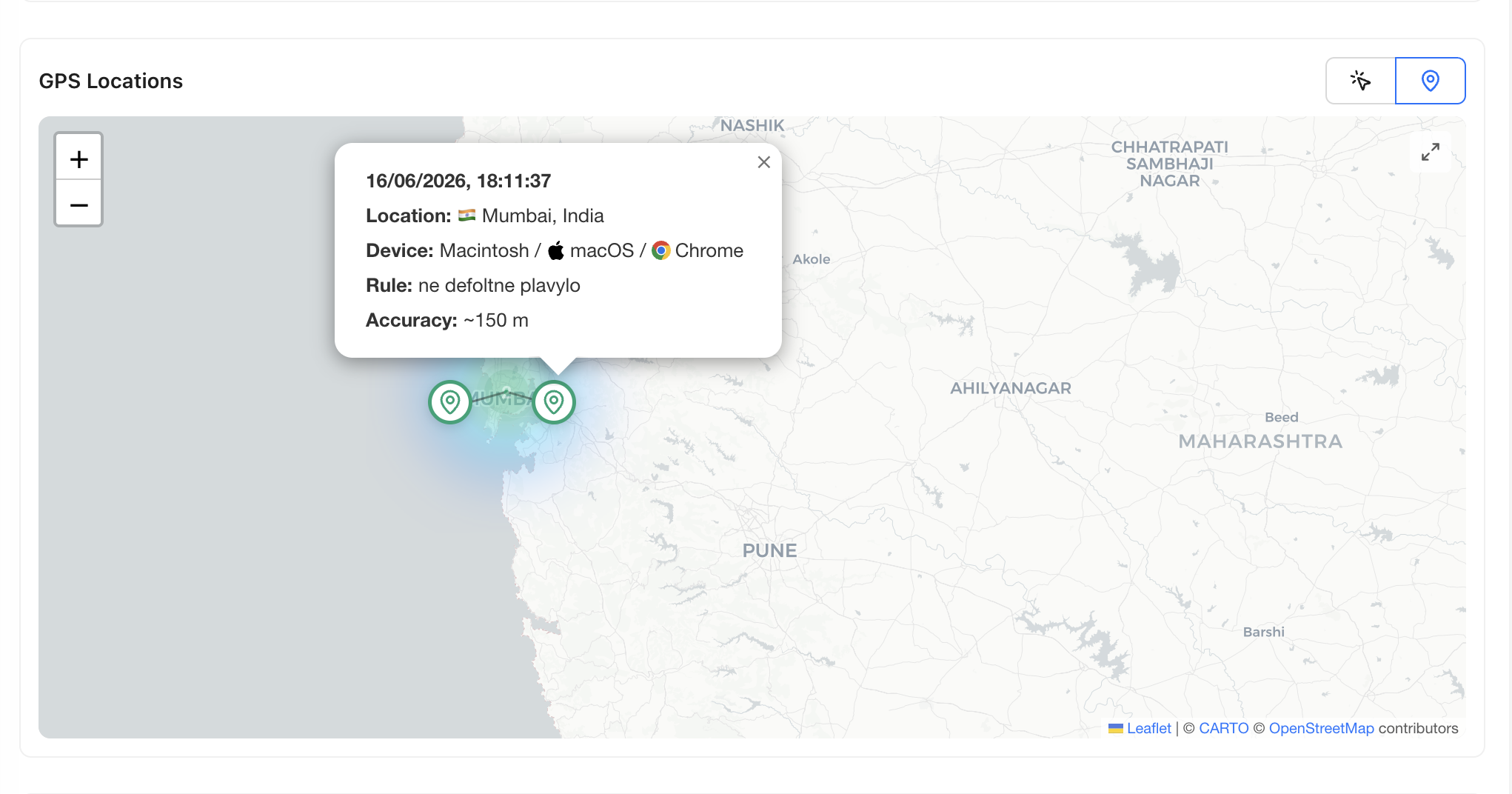
GPS Locations — shows only clicks where the visitor agreed to share their precise location (requires GPS tracking to be enabled on the link). The map zooms to street level. Each marker popup shows the timestamp, location, device, which rule matched the click, and the GPS accuracy in meters.
INFO
If GPS tracking is off, the GPS Locations map is empty. The Clicks Map is always populated for any link with traffic.
GPS tracking
When GPS tracking is enabled on a link, visitors see a full-screen permission page before being redirected. This is a dedicated page — not a browser popup — because browsers block silent location requests and GDPR requires explicit, informed consent before any precise location data is collected. The visitor sees clearly what they're agreeing to and who's asking.
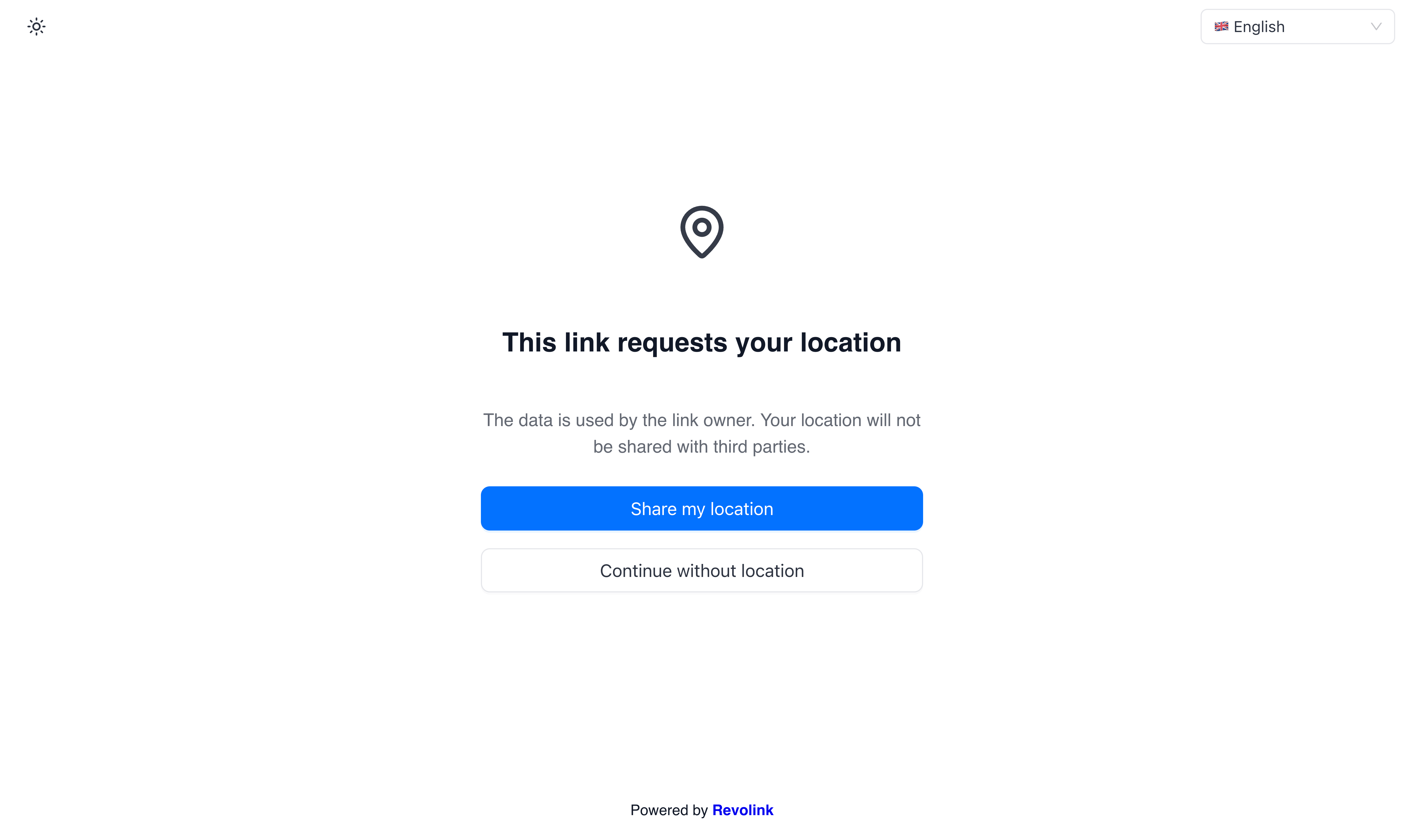
If they allow it, their GPS coordinates are captured and they're immediately sent to the destination. If they decline, the redirect still happens — you just don't get the precise location.
Password + GPS: if the link also has a password, the visitor sees the password page first, then the GPS permission page.
Availability
GPS tracking is available on Starter, Pro, and Business plans. Free plan links cannot enable GPS tracking.
Conversion tracking
The Conversions page (accessible from the sidebar) shows what happens after a visitor clicks your link — if you've set up conversion events on your destination page.
Events tab — lists individual conversion events (purchase, signup, form submission, etc.) fired from your site, each tied back to the original Revolink click. You can filter by date range, link, rule, or event type.
Engagement tab — aggregate engagement metrics across all your links for the selected period.
The link Analytics tab also shows a conversion funnel card — a quick view of click-to-conversion rate without leaving the link.
TIP
To send conversion events to Revolink, your destination page needs to fire events using the Revolink tracking script. See the Conversion tracking guide for setup instructions.
Common mistakes
Put specific rules before broad ones
If a broad rule is listed first, it catches visitors before the more specific rule gets a chance.
Wrong order
Rule 1: Countries = Ukraine              ← catches ALL Ukrainian visitors
Rule 2: Countries = Ukraine, Mobile only ← never reached for UA mobile users
Default: …
Correct order
Rule 1: Countries = Ukraine, Mobile only ← UA mobile users matched first
Rule 2: Countries = Ukraine              ← all other UA visitors
Default: …
City without country
Cities can only be filtered if you also select a country in the same rule.
Active hours: both fields required
If you set a Start time, you must also set an End time — and vice versa.
Overnight time windows work fine
If Start time is later than End time (e.g. 22:00 → 06:00), Revolink correctly treats it as overnight — active from 22:00 until 06:00 the next day.
Frequently asked questions
What is a Revolink smart link?
A Revolink smart link is a short URL that can redirect different visitors to different destinations based on their country, device type, browser, operating system, or time of day. Unlike a standard redirect, a single Revolink URL can serve multiple audiences simultaneously.
How do routing rules work in Revolink?
When a visitor clicks a Revolink link, the system evaluates your routing rules from top to bottom. The first rule whose conditions all match sends the visitor to that rule's target URL. If no rule matches, the visitor goes to the Default rule — your fallback destination.
What is the Default rule in Revolink?
The Default rule is a required fallback that catches every visitor not matched by any other rule. It has no conditions and always fires last. Every Revolink link must have exactly one Default rule.
Can I target visitors by country in Revolink?
Yes. Each routing rule can filter by one or more countries using ISO 3166-1 alpha-2 codes (e.g. UA, DE, US). You can also filter by city, but only when a country is also selected in the same rule.
Can I target visitors by device type?
Yes. Revolink supports targeting by Mobile, Desktop, Tablet, Smart TV, Console, Wearable, and Embedded device types.
Can I target by operating system or browser?
Yes. OS targeting supports Windows, macOS, Linux, iOS, and Android. Browser targeting supports Chrome, Firefox, Safari, Edge, Opera, and Brave.
Can I set active hours for a routing rule?
Yes. Each rule can have a time window (Start time and End time in HH:MM format). The rule only matches visitors who click during that window, based on the visitor's local timezone. Overnight windows (e.g. 22:00 → 06:00) are supported.
What happens if I set the wrong rule order?
Rule order matters — Revolink evaluates rules top to bottom and stops at the first match. If a broad rule (e.g. "Country = Ukraine") is placed above a more specific one (e.g. "Country = Ukraine, Device = Mobile"), the broad rule will always win and the specific rule will never be reached. Always put the most specific rules first.
Can one link have multiple routing rules?
Yes. You can add as many routing rules as your plan allows. Each rule is evaluated independently in the order you define.
Does Revolink support UTM parameters?
Yes. The UTM configurator tab lets you set UTM source, medium, campaign, term, content, and referral values per rule. Revolink appends them automatically to the target URL — no need to add them manually.
How do I track link performance?
The Analytics tab (visible after the link is created) shows total clicks, unique clicks, traffic by day, top rules by traffic, referrers, traffic by location (country and city), and technology breakdown (browser, device, OS).
Can visitors see analytics without logging in?
Yes. The Public access toggle on the Analytics tab lets you share a public analytics URL with anyone — no Revolink account required.
What is GPS tracking and how does it work?
GPS tracking collects precise visitor coordinates — accurate to meters, not just a city from IP. When enabled, visitors see a full-screen consent page before being redirected. If they agree, their location is recorded. If they decline, the redirect still happens without location data. GPS tracking is available on Starter, Pro, and Business plans.
Why does GPS tracking show a full page instead of a browser popup?
Browsers block silent location requests, and GDPR requires explicit informed consent before collecting precise location. A dedicated page gives the visitor full context before they decide.
Where do I see GPS data in analytics?
In the link Analytics tab, the map card has two modes: Clicks Map (IP-based, city-level, always available) and GPS Locations (precise coordinates, only for visitors who consented). Switch between them using the icons in the top-right corner of the map card.
What is conversion tracking?
Conversion tracking lets you see what happens after a click — purchases, signups, or any custom event you fire from your destination page. Results appear in the Conversions page (Events and Engagement tabs) and as a funnel card in each link's Analytics tab.