

On this page
Conversion Tracking
Revolink can track what visitors do after they click your link — registrations, purchases, leads, page views, and any custom event you define. Results are shown broken down by link, routing rule, and A/B variant, so you know exactly which variation drives the most results.
This guide covers: setting up tracking, installing the SDK, tracking events, and reading the data.
How it works
When a visitor clicks your Revolink link, the SDK detects that the visit came from your link and starts a session. Any events fired during that session are attributed to the link (and to the specific routing rule or A/B variant that matched the visitor).
Attribution is link-first
The SDK only tracks events for visitors who arrived via a Revolink link. If someone opens your website directly — without clicking a Revolink link — their events are not counted. This keeps your data clean and attribution accurate.
Step 1 — Generate your workspace key
Go to Workspace Settings → Conversion Tracking.
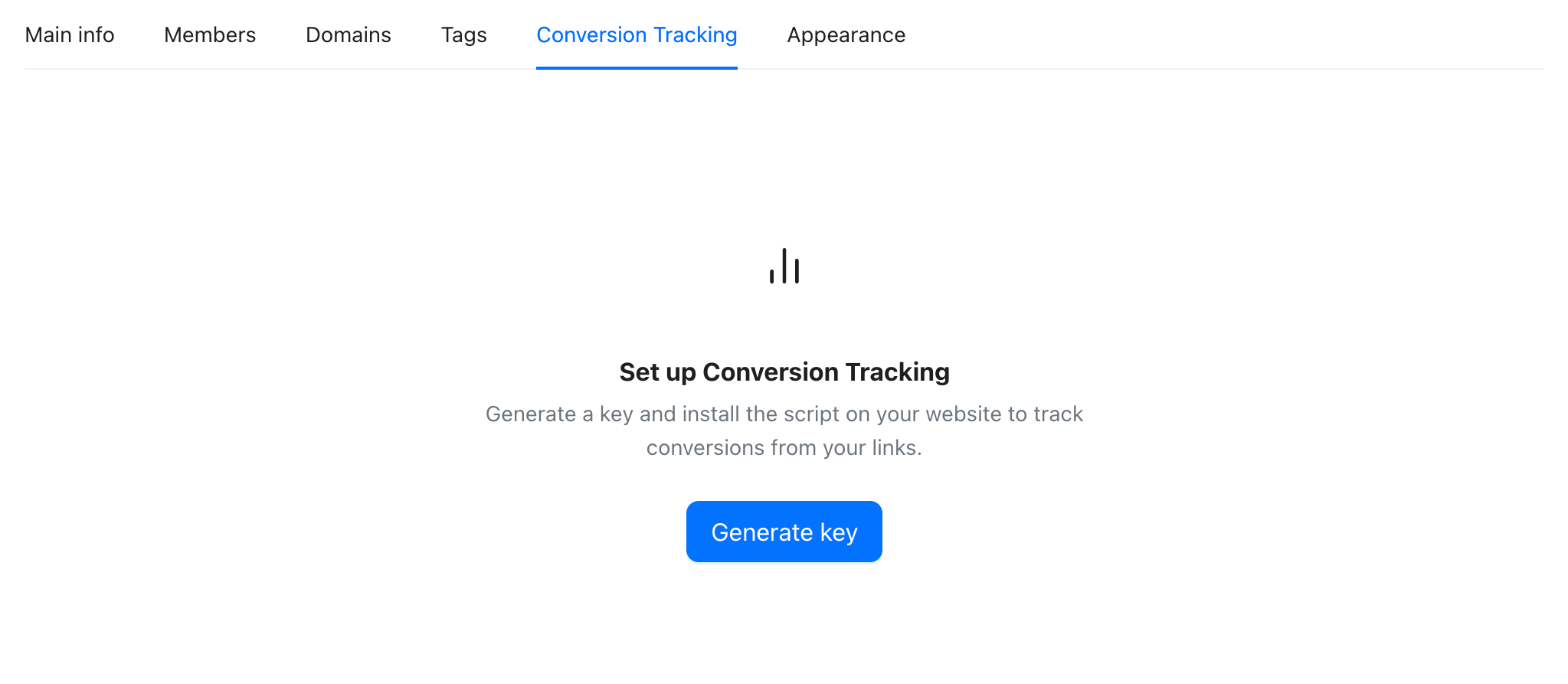
Click Generate key. Revolink generates a unique key for your workspace and shows you the installation snippet.
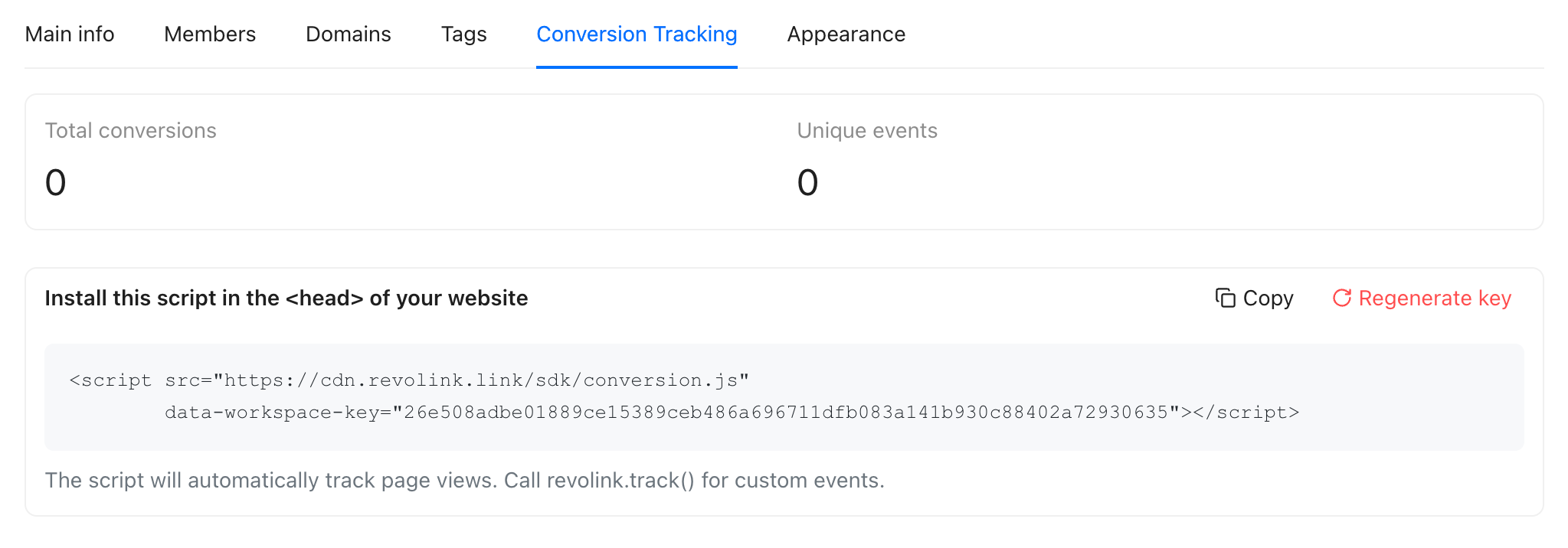
Step 2 — Install the script
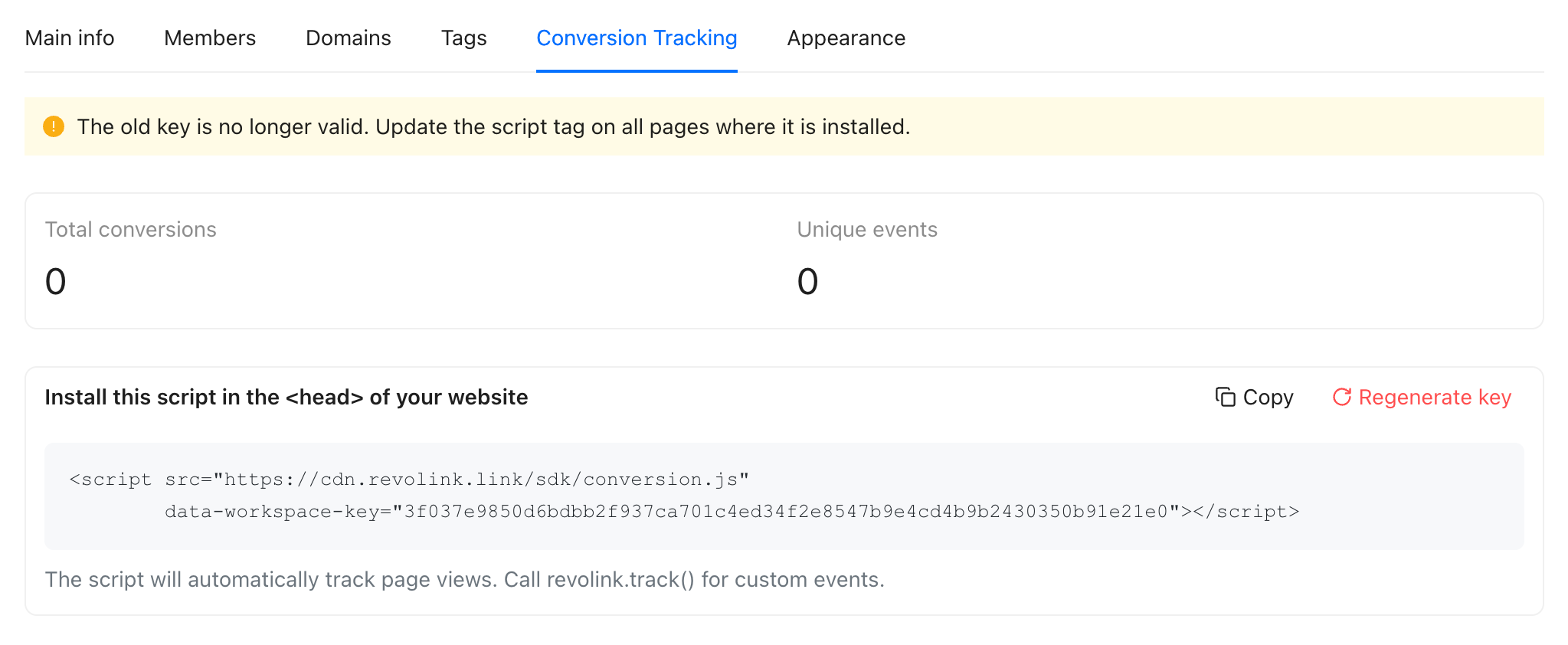
Copy the script snippet and paste it into the <head> of every page you want to track — typically your global layout file.
html
<script src="https://cdn.revolink.link/sdk/conversion.js"
        data-workspace-key="YOUR_KEY"></script>
Replace YOUR_KEY with your actual key (it's pre-filled in the snippet in your settings).
One key per workspace
The key is workspace-scoped. If you use multiple workspaces, each one has its own key — use the right key for each site.
What the SDK tracks automatically
Once installed, the SDK tracks these events without any extra code, but only for visitors who arrived via a Revolink link:
page_view
Fired immediately when the visitor opens the page. This is the first event in any session — it confirms that the attribution was picked up correctly. Sent via fetch so the SDK can detect an invalid workspace key and suppress further tracking if needed.
scroll_depth
Fired when the visitor leaves the page (tab becomes hidden or the browser closes). Captures the maximum scroll percentage reached during the session, bucketed to 25, 50, 75, or 100. Only non-zero values are sent.
Uses an upsert: if the visitor returns to the same page within the same session, the value is updated rather than a new record inserted.
time_on_page
Fired together with scroll_depth on page hide. Counts only the time the tab was actually visible — switching to another tab pauses the timer. The value is in seconds.
Also uses an upsert, so tab-switching back and forth accumulates into a single record per page per session.
outbound_click
Fired whenever the visitor clicks a link (<a href>) pointing to a different domain. Captures the full href as metadata.url. Useful for understanding which external links your visitors click most often.
Engagement events and quotas
scroll_depth, time_on_page, and outbound_click do not count toward your plan's monthly conversion quota. Only explicit events do.
All available events
Automatic (tracked by the SDK)
| Event | Fired when | Counts toward quota |
|---|---|---|
page_view | Page loads, visitor came via a Revolink link | Yes |
scroll_depth | Visitor leaves the page | No |
time_on_page | Visitor leaves the page | No |
outbound_click | Visitor clicks a link to an external domain | No |
Standard (track manually, recommended)
Use these names for events that map to common funnel stages. They appear in the pre-built dashboard cards (leads, sales, revenue).
| Event | When to fire | Supports value/currency |
|---|---|---|
lead | Contact form submitted, email captured | No |
complete_registration | New account created | No |
initiate_checkout | Checkout page opened | No |
subscribe | Subscription started | Yes |
purchase | Payment completed | Yes |
view_content | Key content page viewed (product, pricing) | No |
Funnel logic
lead has deduplication — if the same session + link combination already has a lead event, a second one is not inserted. This prevents double-counting from form re-submissions. Custom events with countAs: 'lead' get the same deduplication.
Events that have a value set (including non-standard names) are counted as sales in the dashboard.
Custom events
You can fire any event name up to 64 characters. Custom events appear in the by event breakdown on the Conversions page alongside standard ones. They count toward your monthly quota.
js
revolink.track('video_played');
revolink.track('calculator_used', { tool: 'roi' });
revolink.track('coupon_applied', { code: 'SUMMER10' }, 0, 'USD');
By default, custom events appear as clicks in the dashboard summary (Leads / Sales counts). To have them counted as leads or sales instead, add countAs to the metadata:
js
revolink.track('signup_completed', { countAs: 'lead' });
revolink.track('order_placed', { countAs: 'sale' }, 59.99, 'USD');
Allowed values: 'lead', 'sale'. Omitting countAs counts the event as a click (default).
HTML attribute tracking
No JavaScript needed — add data-revolink-action to any element and the SDK fires the event automatically when the element is clicked:
html
<button
  data-revolink-action="purchase"
  data-revolink-value="49.99"
  data-revolink-currency="USD"
  data-revolink-metadata='{"plan":"pro"}'>
  Buy now
</button>
| Attribute | Required | Description |
|---|---|---|
data-revolink-action | Yes | Event name to fire |
data-revolink-value | No | Monetary value (number) |
data-revolink-currency | No | 3-letter currency code |
data-revolink-metadata | No | JSON object with extra data (up to 10 keys) |
User identification
Call revolink.setUser() before tracking events to attach an identifier to each event. This improves attribution when the same person visits across devices or sessions.
js
revolink.setUser({
  userId: 'user_123',         // your internal user ID
  hashedEmail: sha256(email)  // SHA-256 hash of the email, never raw
});
Never send raw email
Always hash the email with SHA-256 before passing it. Revolink stores hashedEmail only — it cannot reverse it.
After calling setUser, all subsequent revolink.track() calls in that session include the identifiers.
Server-side tracking
Sending events from your backend bypasses ad blockers and ITP (Intelligent Tracking Prevention). Use this for high-value events like purchases where accuracy matters most.
Endpoint: POST /apiv1/track-conversion
Authentication: Authorization: Bearer YOUR_KEY
To protect against spoofed requests, Revolink supports HMAC request signing. Your HMAC secret is shown in the Conversion Tracking tab under HMAC Secret.
js
// Node.js example
const crypto = require('crypto');

const payload = JSON.stringify({
  event: 'purchase',
  value: 49.99,
  currency: 'USD',
  userId: 'user_123',
  linkSlug: 'my-campaign'  // optional — attribute to a specific link
});

const signature = crypto
  .createHmac('sha256', HMAC_SECRET)
  .update(payload)
  .digest('hex');

fetch('https://api.revolink.link/apiv1/track-conversion', {
  method: 'POST',
  headers: {
    'Content-Type': 'application/json',
    'Authorization': `Bearer YOUR_KEY`,
    'X-Revolink-Signature': signature
  },
  body: payload
});
Body fields:
| Field | Type | Description |
|---|---|---|
event | string | Event name (required) |
value | number | Monetary value |
currency | string | 3-letter ISO currency code |
sessionId | string | Session ID (to link to a browser-side session) |
userId | string | Your internal user ID |
hashedEmail | string | SHA-256 hash of the user's email |
linkSlug | string | Slug of the Revolink link to attribute this event to |
ruleId | string | Routing rule ID (for rule-level attribution) |
abVariantId | string | A/B variant ID (for A/B-level attribution) |
metadata | object | Custom key/value data (up to 10 keys, 64 chars each). Set countAs: 'lead' or countAs: 'sale' to control how a custom event is counted in dashboard summaries. |
page | string | Page URL where the event happened |
referrer | string | Referrer URL |
If conversionHmacSecret is set on your workspace, the X-Revolink-Signature header is required — requests without a valid signature are rejected.
Viewing conversion data
Go to the Conversions section in the left navigation.
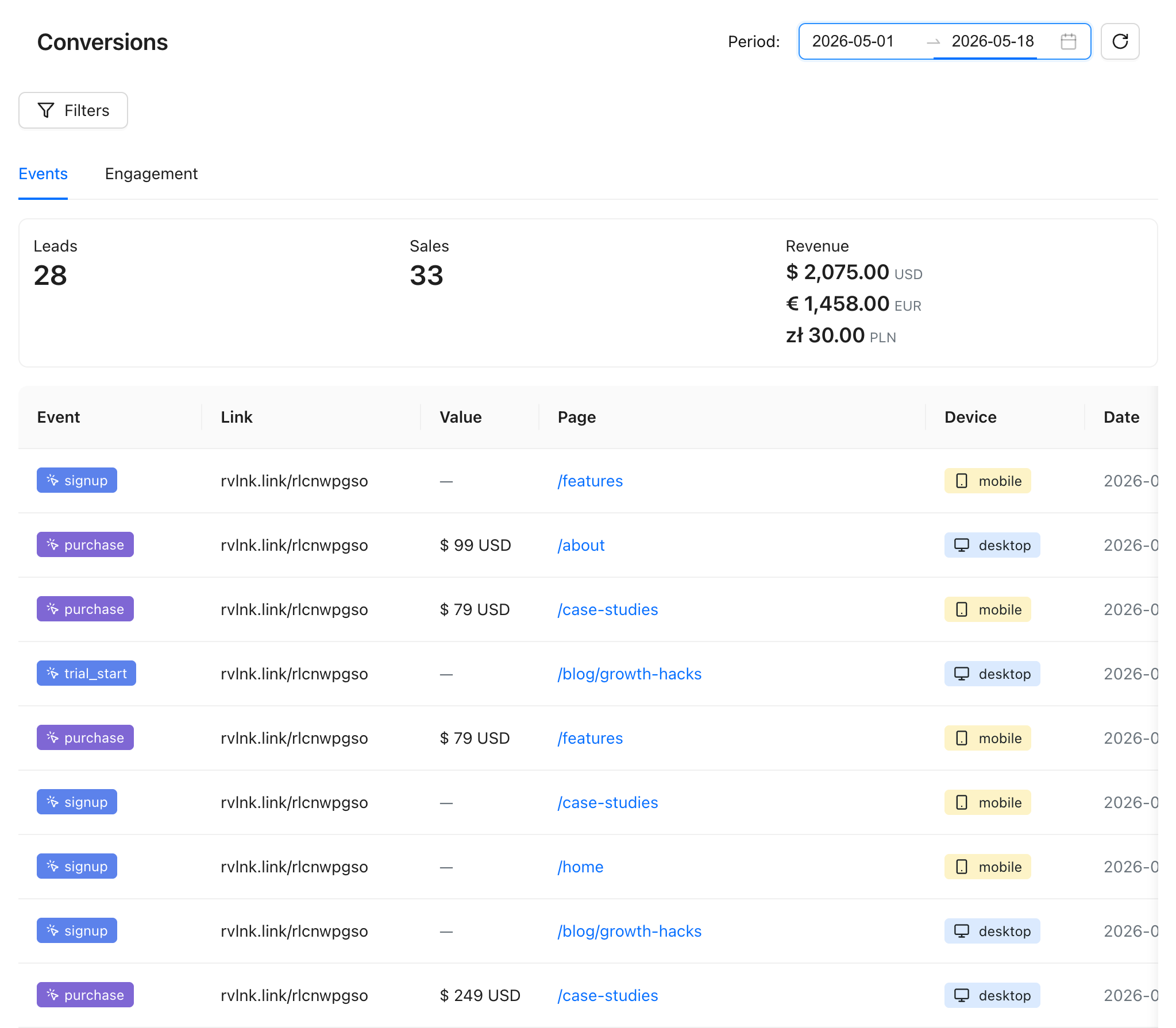
The page has two tabs:
Events tab
Shows all tracked events (except automatic engagement events).
At the top: summary metrics — total conversions, leads count, sales count, and revenue per currency.
Below: a chart of conversions over the selected period, and a table of individual events with event name, device, page, value, and timestamp.
Filters: narrow the data by event name, device type, currency, value, or link slug.
Engagement tab
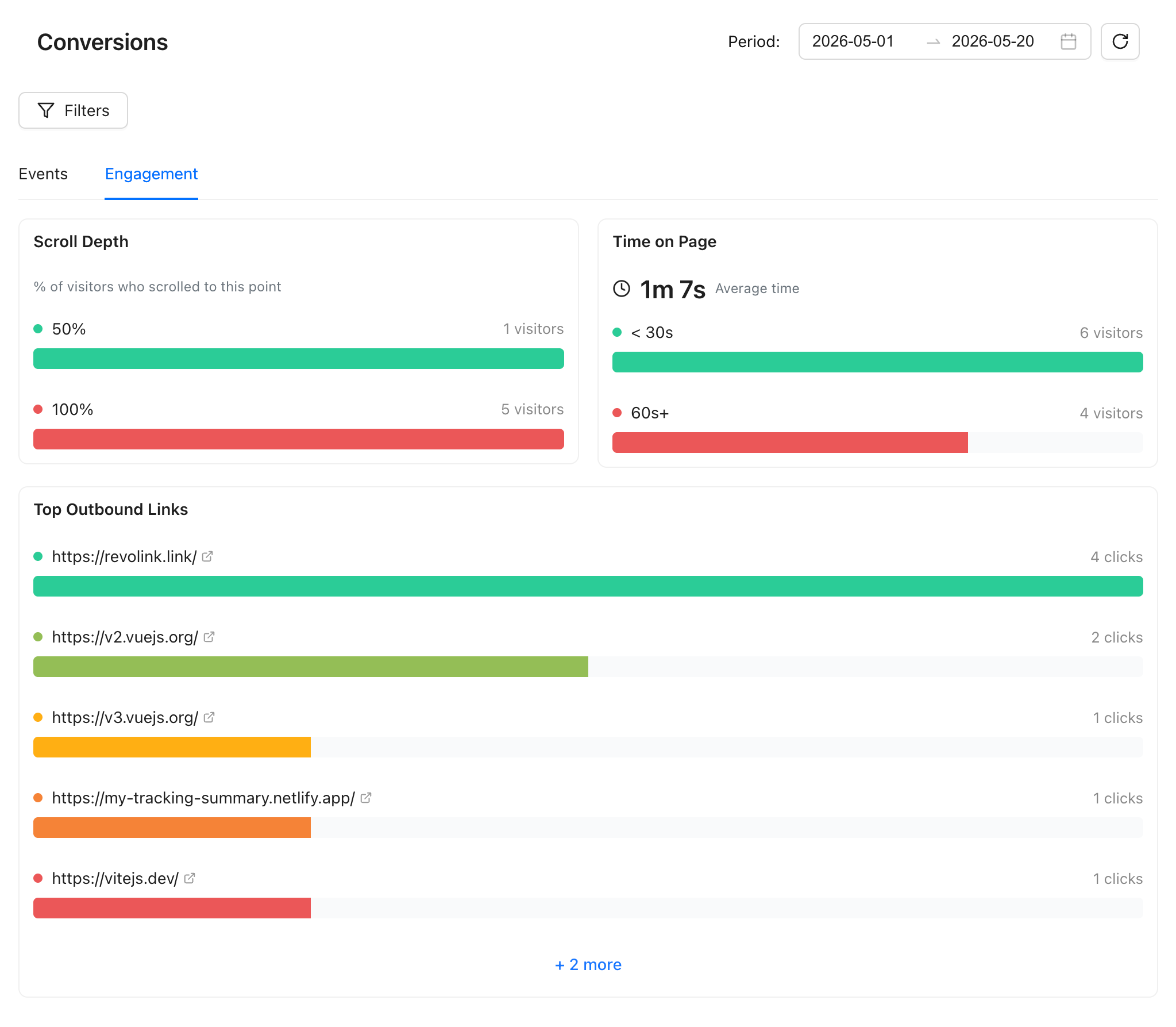
Shows the automatic engagement metrics:
- Scroll depth — distribution of how far visitors scrolled (25%, 50%, 75%, 100%)
- Time on page — breakdown of sessions by duration: under 30s, 30–60s, over 60s; plus the average
- Outbound clicks — top external URLs clicked, with count
Attribution: links, rules, and A/B variants
Every event is attributed to the specific link, routing rule, and A/B variant that the visitor matched when they clicked your link.
You can see this breakdown in:
- Link analytics — open any link, go to the Analytics tab, scroll to Conversions to see events attributed to that link
- Conversions page — filter by link to see only events from a specific campaign
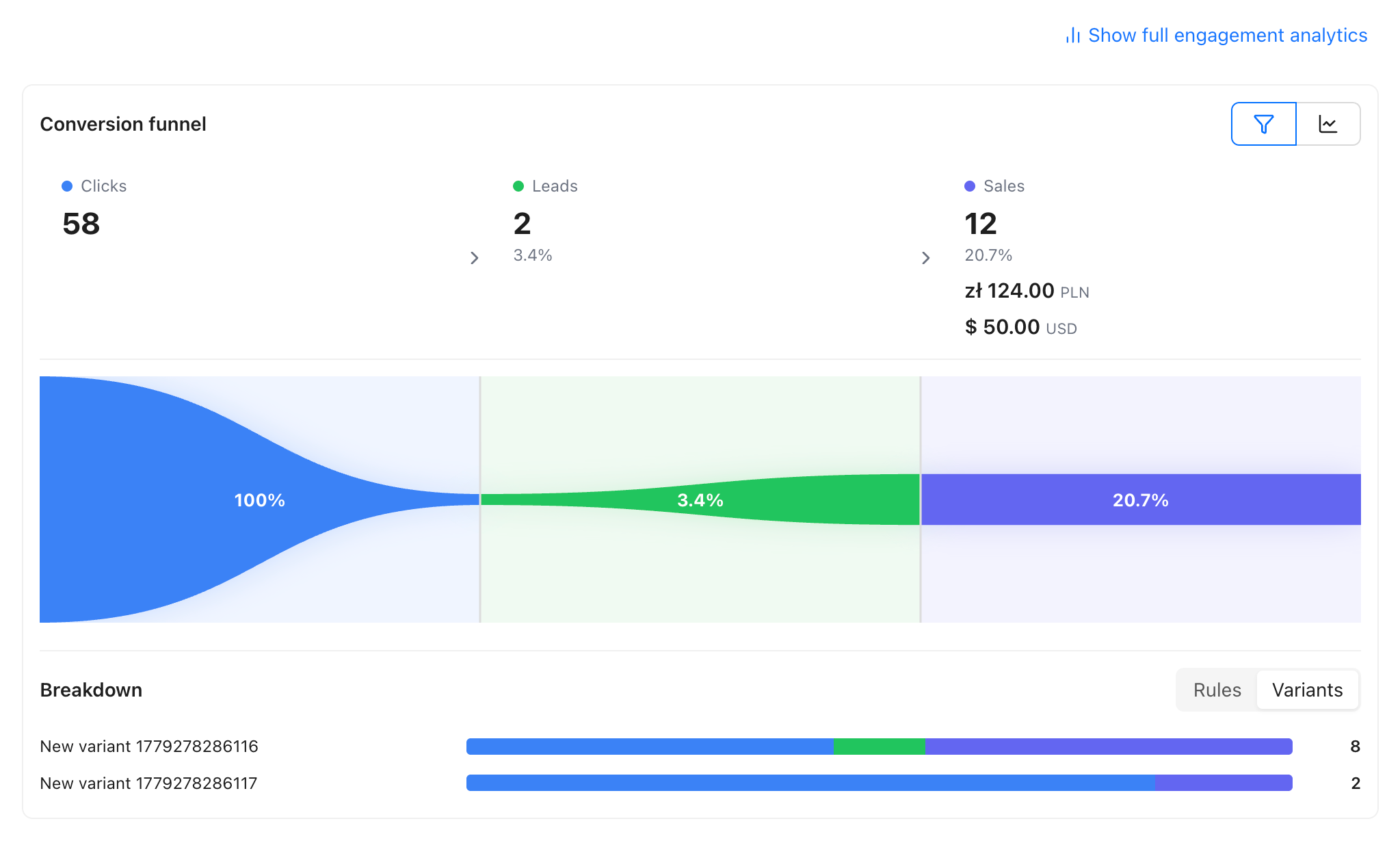
If you're running an A/B test or routing rules on a link, the conversion data shows results per rule and per variant — so you can directly compare which version converts better.
Regenerating the key
You can regenerate your workspace key at any time from Workspace Settings → Conversion Tracking (available to workspace owners only).
Update your script tag immediately
After regenerating, the old key stops working. Any page still using the old key will log a warning in the browser console and stop tracking. Update the data-workspace-key attribute in your script tag on all pages as soon as possible.
Plan limits
Each plan includes a monthly conversion event quota. Engagement events (scroll_depth, time_on_page, outbound_click) do not count toward the quota — only explicit events do.
When the quota is reached, new events are rejected with HTTP 429 and you receive a notification. Existing events are preserved. The quota resets on your billing cycle.
Frequently asked questions
Does the SDK track visitors who didn't come from a Revolink link?
No. The SDK checks for a Revolink attribution cookie (_rvl_rl). If it's not present, the SDK exits immediately and tracks nothing. This is by design — only traffic originating from your links is counted.
What happens if a visitor blocks JavaScript or uses an ad blocker?
Client-side events from the SDK will be blocked. Use server-side tracking for high-value events where you can't afford to miss them.
Can I track the same event from both the browser SDK and the server?
You can, but you may count the same conversion twice. Use sessionId on the server-side event to match it to the browser session, and keep your logic consistent.
Is email data stored safely?
Revolink never stores raw email addresses. Only the SHA-256 hash is stored. You must hash the email yourself before calling revolink.setUser() or including it in a server-side event.
What is HMAC signing and do I need it?
HMAC signing lets Revolink verify that server-side events were sent by your backend and not spoofed. If your workspace has a HMAC secret configured, every server-side request must include the X-Revolink-Signature header. It is strongly recommended for production.
Can I send monetary events without a currency?
No. If you pass value without currency (or vice versa), both fields are silently dropped. Always send them together.
What event names should I use?
Use the standard names (lead, purchase, subscribe, complete_registration, initiate_checkout) when possible — they map to the pre-built funnels in the dashboard. Custom names work too, but they appear only in the "by event" breakdown.
How do I make a custom event count as a lead or sale?
Add countAs: 'lead' or countAs: 'sale' to the event metadata. This tells Revolink how to categorize the event in the Leads/Sales summary and funnel charts. Without countAs, custom events are counted as clicks.
How many metadata keys can I attach to an event?
Up to 10 keys per event. Keys are truncated to 64 characters. Values must be strings, numbers, or booleans.